
Chrome's performance settings offer three Memory Saver levels. Google describes them as tabs going inactive after "a longer period of time", "an optimal period of time", and "a shorter period of time". That is the entire specification. No minutes, no hours, no threshold you can plan around.
So most writing about this feature, including our own guide to it, has had to say the thresholds are unpublished and that any specific timing you read is somebody's guess.
That was true of Google's documentation. It was never true of Chrome. Chromium is open source, the file that implements this behaviour is about 200 lines long, and it contains three plain numbers.
What are the real Memory Saver timers?
A tab goes into the background. Chrome starts a one-shot timer. When that timer fires and nothing has interrupted it, the tab is discarded.
| Setting in Chrome | Name in the code | Time in background before discard |
|---|---|---|
| Moderate | kConservative | 6 hours |
| Balanced (default) | kMedium | 4 hours |
| Maximum | kAggressive | 2 hours |
Those values come from GetTimeBeforeDiscardForCurrentMode in memory_saver_mode_policy.cc, and the policy's own unit test fixes the same three constants independently, which is a useful cross-check: a test that hardcodes base::Hours(2) for the aggressive mode fails the day anybody changes the policy.
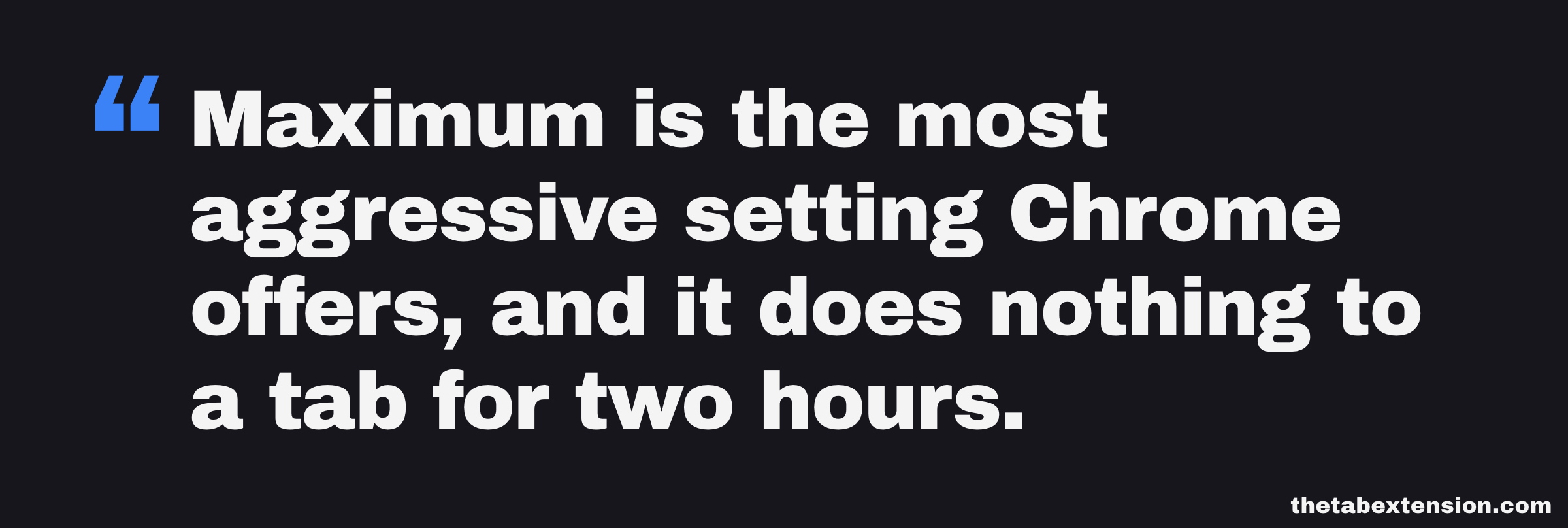
Read the bottom row again, because it is the one that matters. Maximum is the most aggressive setting Chrome offers, and it does nothing to a tab until that tab has sat in the background for two hours.
Does Chrome Memory Saver actually work?
It works exactly as written. The question is whether "as written" overlaps with how you use a browser.
Open Chrome in the morning, work through forty tabs, close the laptop at lunch. On Balanced, the default, not one of those tabs was ever eligible: four hours had not passed. On Moderate, you would need a six-hour unbroken session before the first tab was touched.
This is the honest answer to "does it actually work", and it is not the answer either camp expects. Memory Saver is not broken, and it is not doing nothing. It is a slow background housekeeper aimed at the browser you left open since Tuesday. It was never designed to change anything about the next ten minutes, which is the exact window people are in when they go looking for it.
Four gates, not one
The timer is the gate people can guess at. There are three more, and each one removes tabs from the pool.
The ten-minute floor. A tab that was visible within roughly the last ten minutes is protected outright, on every setting. The constant is called kNonVisiblePagesUrgentProtectionTime and it is 10 minutes on desktop, zero on ChromeOS and Android.
The revisit cap, which is the strange one. Chrome counts how many times you return to a tab. Go past the limit and the discard timer is never started at all for that tab, no matter how long it then sits. The limit is 5 revisits on Moderate and 15 on Balanced and Maximum. A comment in the source explains why it is only checked once: the count cannot go down.
Sit with what that means. The tabs you keep coming back to are the ones you clearly value, so Chrome stops discarding them. It is defensible behaviour. It is also the reason Memory Saver frees least from the browser of the person who needs it most: heavy tab users revisit heavily, and past fifteen returns a tab is exempt for the life of the session.

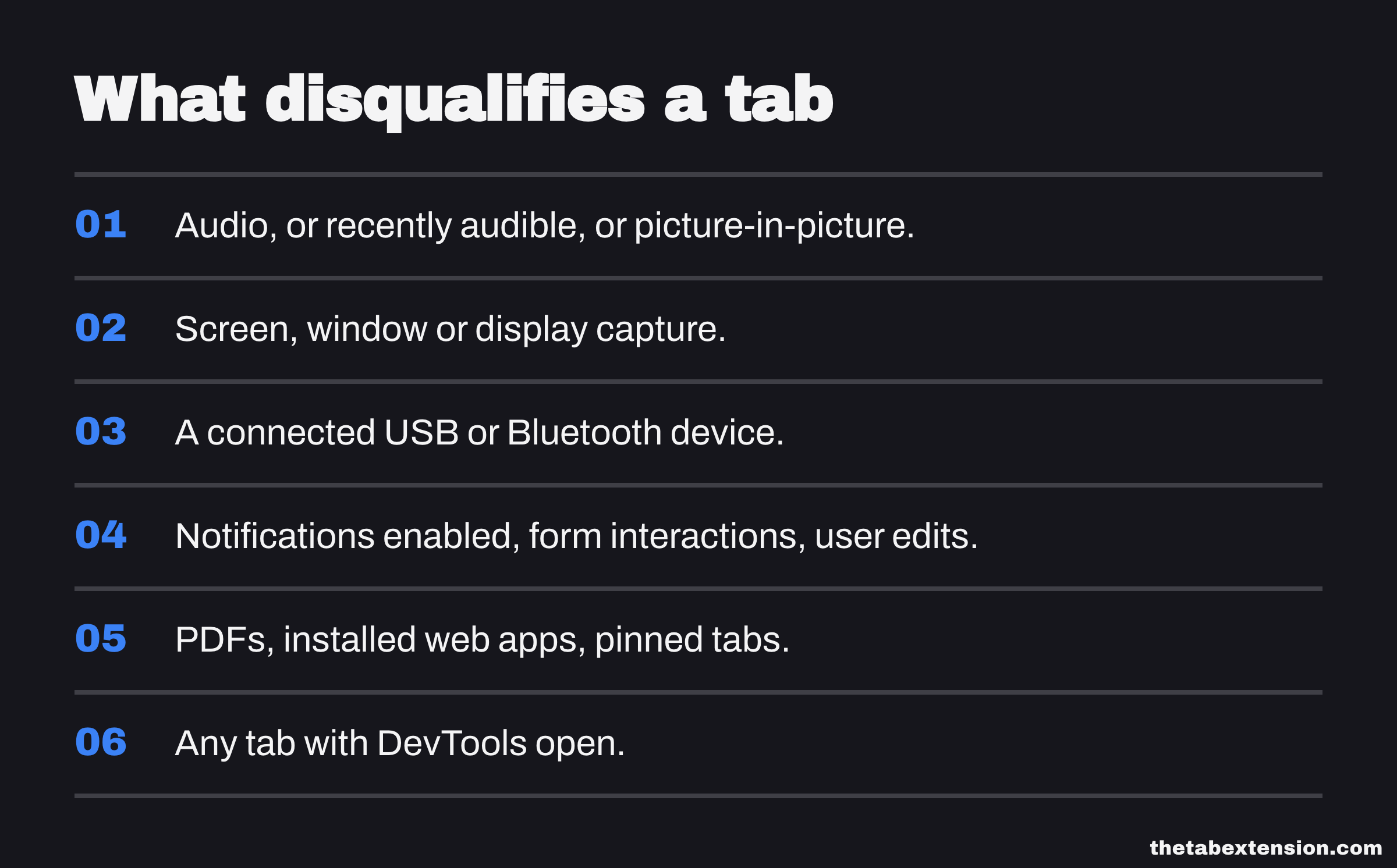
The eligibility list. Even a tab that clears all of the above is refused if it is doing something. The reasons in the source are more numerous than Google's help page suggests: audio or recently-audible, picture-in-picture, screen or window or display capture, a connected USB or Bluetooth device, notifications enabled, form interactions, user edits, PDFs, installed web apps, pinned tabs, tabs an extension has protected, and any tab with DevTools open.
Pinned tabs deserve their own sentence, because pinning is what people do to the heavy web apps they keep open all day. Pinning a tab makes it permanently ineligible. The Gmail, Slack and Figma tabs you pinned to keep them handy are the exact tabs Memory Saver will never reclaim.
Why nothing happened while you slept
Here is the finding that explains the most common complaint about this feature.
Closed laptop lids do not count. The timer measures elapsed time with LiveTicks, a clock that stops while the device is suspended. If a tab has been backgrounded for one hour and you then shut the lid for ten, the tab has still only been backgrounded for one hour when you open it again, and Chrome restarts the timer for the remaining three.
Chromium's test suite states this outright in a case named DontDiscardAfterBackgroundedIfSuspended. It fast-forwards twenty hours of suspended time, asserts that nothing was discarded, and only then advances real time until the discard finally happens.
So "I left it overnight and Chrome still ate 8GB in the morning" is not a bug report. It is the feature working as specified, and it is a good argument for the two-hour setting over the six-hour one if you close your laptop between sessions.
Chrome Memory Saver on or off?
On. Leave it on.
It costs you nothing while it waits, it returns real memory on the long sessions it was built for, and the tabs you would hate to lose are protected by the eligibility list rather than by luck. There is no version of this where turning it off leaves you better.
The level is the more interesting question, and the timers make the case unusually clearly:
- Moderate is hard to justify. Six hours of unbroken background time is longer than many people's entire computing day, and it also drops the revisit cap from 15 to 5, so fewer tabs qualify in the first place. Two settings that both reduce how often anything happens.
- Balanced at four hours suits a machine that stays awake all day with a browser you never quit.
- Maximum at two hours is the only setting that reliably acts within a normal working session, and it is what to pick if you are here because Chrome felt slow.
None of the three will help in the next ten minutes. That is not a criticism of the feature, it is a description of it.
What to do about the next ten minutes
If your problem is memory pressure right now, you have two levers Memory Saver does not give you.
The first is Chrome's own Task Manager, at Shift+Esc on Windows and Linux or from the three-dot menu under More tools. It shows the per-tab footprint, and it lets you end a specific tab immediately rather than waiting out a two-hour timer. It is blunt, but it is instant.
The second is to stop treating open tabs as the only place your work can live. A tab you have not looked at in two hours is not a tab, it is a bookmark you are paying rent on. Saving that set of tabs and closing them returns their memory immediately, in full, with no eligibility list and no revisit cap, because the tabs are gone rather than parked. One caveat on the word immediately, and it is the reason closing tabs sometimes appears to do nothing: Chrome frees memory when a process exits, not when a tab closes, so closing tabs one at a time can return nothing at all if the tabs share a process.
That is the workflow TheTab is built around, and it is the same reason the save-and-close pattern shows up in every family of tab manager: one action, everything closed, everything recoverable from a dated list. Where Memory Saver keeps the tab strip full of ghosts that reload when clicked, an archive empties the strip and keeps the URLs. If your interest is more in why the tabs pile up than in what to do once they have, the psychology of tab hoarding covers the other half of this.
Where this leaves you
Memory Saver is a reasonable feature with a documentation problem. Google shipped three levels described only in comparative adjectives, and the resulting vacuum got filled by guesswork, so people set Maximum, watched nothing happen for twenty minutes, and concluded the feature was fake.
The numbers dissolve most of that. Two, four and six hours in the background. Ten minutes of protection after you look away. Five or fifteen revisits and the timer never starts. A list of a dozen ways a tab can disqualify itself, with pinned tabs at the top.
Turn it on, set it to Maximum, and expect nothing from it today. Our full Memory Saver guide covers the settings path, the exclusion list and the rest of the mechanics; this page exists to give you the one thing that guide could not: the actual numbers.
SOURCES
Every factual claim in this article traces to a source below. Where we could not source a claim, we removed it rather than softening it.
Read 16 August 2026 from the main branch. GetTimeBeforeDiscardForCurrentMode returns 6 hours for kConservative, 4 hours for kMedium and 2 hours for kAggressive. GetMaxNumRevisitsForCurrentMode returns 5 for kConservative and 15 for the other two, and StartDiscardTimerIfEnabled returns without starting a timer when a tab has been revisited more times than that. DiscardPageTimerCallback measures elapsed time with LiveTicks and restarts the timer for the remainder when the device was suspended. The policy field mode_ is initialised to kMedium.
Read 16 August 2026. The test file independently fixes the same constants: AGGRESSIVE_TIMEOUT is 2 hours, MEDIUM_TIMEOUT is 4 hours, CONSERVATIVE_TIMEOUT is 6 hours. The test DontDiscardAfterBackgroundedIfSuspended fast-forwards twenty hours of suspended time in two ten-hour blocks and asserts that no discard happens, then discards only after the remaining unsuspended time elapses.
Read 16 August 2026. kNonVisiblePagesUrgentProtectionTime is 10 minutes on desktop platforms and zero on ChromeOS and Android, and is described in the file as the time during which non-visible pages are protected from urgent discarding.
Read 16 August 2026. The CannotDiscardReason values recorded when a tab is refused include kVisible, kRecentlyVisible, kAudible, kRecentlyAudible, kPictureInPicture, kPdf, kWebApp, kNotificationsEnabled, kExtensionProtected, kCapturingVideo, kCapturingAudio, kBeingMirrored, kCapturingWindow, kCapturingDisplay, kConnectedToBluetooth, kConnectedToUSB, kActiveTab, kPinnedTab, kDevToolsOpen, kBackgroundActivity, kFormInteractions, kUserEdits and kOptedOut.
Read 16 August 2026. MemorySaverModeAggressiveness is kConservative = 0, kMedium = 1, kAggressive = 2, and the settings page renders its three radio buttons in that order as the Moderate, Balanced and Maximum options.
Read 16 August 2026, and dated with that read date because Google revises this page in place. It describes Moderate as tabs becoming inactive after a longer period of time, Balanced as an optimal period of time, and Maximum as a shorter period of time, with no figure attached to any of them. It lists the conditions that may prevent deactivation, including active audio or video, screen sharing, notifications, downloads, partially filled forms, pinned tabs and connected USB or Bluetooth devices, and carries the settings path and the Always keep these sites active exclusion list.
Google's only published memory figure for these features is the vendor claim of up to 40% and 10GB less memory, and it covers Memory Saver and Energy Saver together rather than Memory Saver alone.