
Chrome Memory Saver has been on by default for years, which is the first useful thing to know if you came here to switch it on. The second is that switching it on rarely produces the change people expect it to.
What does Chrome Memory Saver actually do?
Chrome Memory Saver is a built-in Chrome setting that deactivates tabs you have not used recently and releases the memory those tabs were holding. The tab stays in the tab strip with its title and favicon. Only the loaded page is dropped. Clicking a deactivated tab reloads it, which costs a second or two and takes the memory back. Nothing is closed and nothing is deleted.
Google's own word for this is deactivate, not suspend or sleep, and the distinction matters when you are reading the settings screen. A deactivated tab is a tab whose page has been unloaded from memory while the browser keeps the entry, the title and the history around. Chrome rebuilds the page from cache or from the network when you go back to it.
Memory Saver lives at chrome://settings/performance alongside three related features that are easy to confuse with it. Energy Saver throttles background work and animation when your laptop is unplugged or low on battery, which is a power feature rather than a memory one. Performance issue alerts watch for a slow moment and offer to deactivate whichever tabs are eating resources right now. Preloading fetches pages you are likely to open next, which spends memory rather than saving it.
Other browsers ship the same idea under different names. Edge calls it sleeping tabs, which Microsoft describes as reducing CPU, battery and memory usage by putting idle background tabs to sleep, and it is on by default there too. [8] Firefox takes a different trigger: its tab unloader fires when the system's available memory runs low, to stop Firefox crashing, and it skips tabs playing media or holding a WebRTC connection. [9] Tab unloading is table stakes across browsers now.
When did Chrome Memory Saver come out?
Two dates, two different events. Google announced Memory Saver and Energy Saver on 8 December 2022 and began a staged rollout, naming no version number. [1] Memory Saver became on by default on Windows, macOS and ChromeOS in Chrome 110 stable, [2] which landed on 7 February 2023. [5] Either date is correct if you say which event you mean. It is not a 2025 feature and it does not require Chrome 130.
The announcement is New Chrome features to save battery and make browsing smoother on Google's Chrome blog, dated 8 December 2022. It commits only to "rolling out both Memory Saver and Energy Saver modes over the next several weeks globally for Windows, macOS and ChromeOS" and never states a Chrome version. The date comes from the Chrome Releases blog, which promoted Chrome 110 to the stable channel for desktop on 7 February 2023. That post says nothing about Memory Saver; the on-by-default detail comes from coverage of the rollout, including Android Police's report on 20 February 2023.
What did arrive later is the choice of modes. For the first two years Memory Saver was a single on or off toggle. The Moderate, Balanced and Maximum levels were announced in Boost your browsing with Chrome's new performance controls on 29 October 2024, along with the performance issue alerts. [4]
An earlier version of this article said Memory Saver was introduced in 2025 and needed Chrome 130. That was wrong, and it was wrong in a way that would have made you think you were missing a feature you already had. If you are on any Chrome from the last three years, you have it.
How do you turn on Chrome Memory Saver?
Open chrome://settings/performance in the address bar, or use the three-dot menu at the top right, then Settings, then Performance in the left sidebar. Turn Memory Saver on and pick a level. Balanced is the one Google recommends. [3] Because Memory Saver has been on by default since Chrome 110, in most profiles the switch is already on and there is nothing for you to enable.
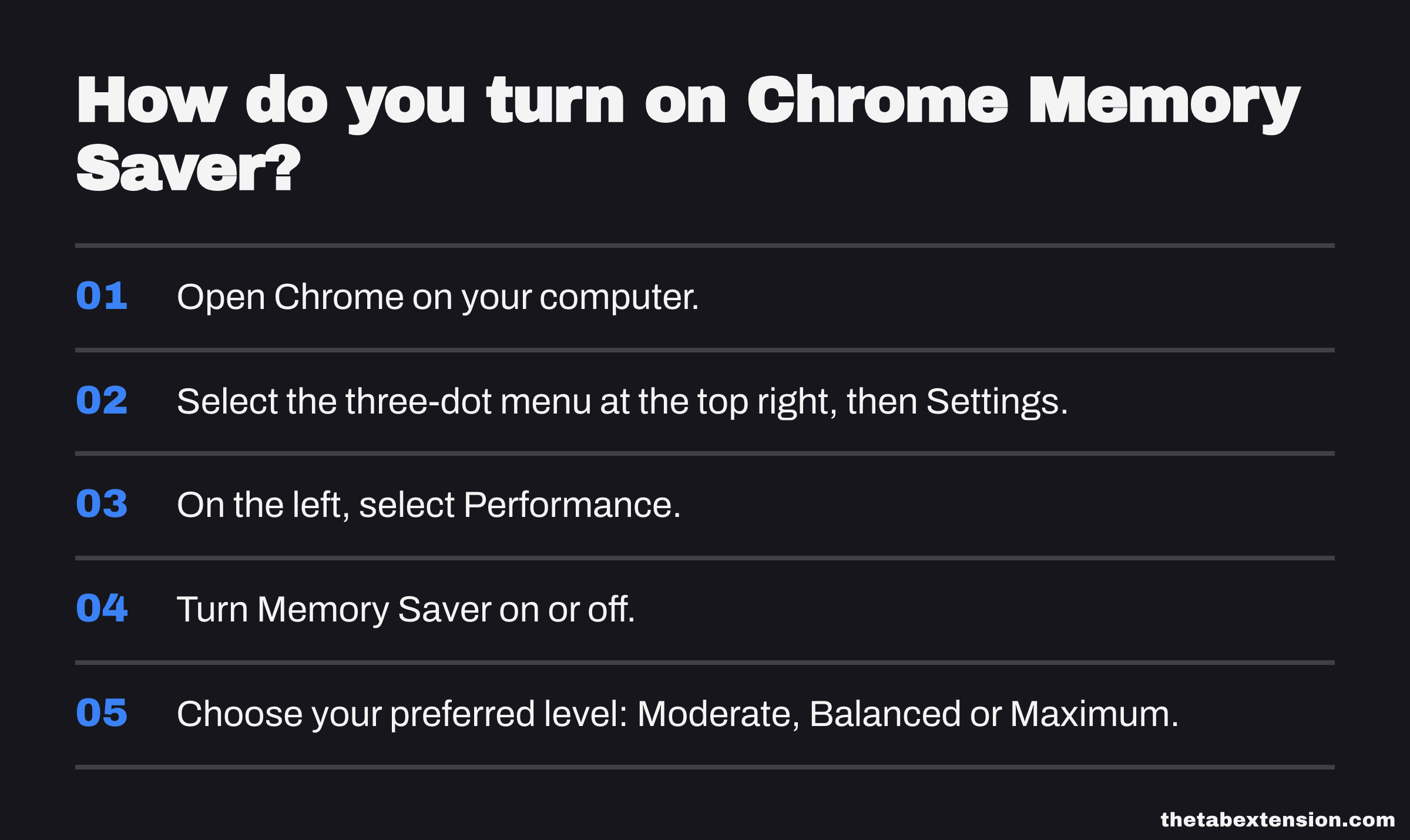
The full path, in Google's own steps:
- Open Chrome on your computer.
- Select the three-dot menu at the top right, then Settings.
- On the left, select Performance.
- Turn Memory Saver on or off.
- Choose your preferred level: Moderate, Balanced or Maximum.
Typing chrome://settings/performance straight into the address bar skips the first three steps. These controls are desktop only. Chrome on Android and iOS does not expose them.
Adding sites to the exclusion list
Under the same Performance screen there is a list called Always keep these sites active. Anything on it is never deactivated, whatever mode you are in.
- Go to Settings, then Performance.
- Next to "Always keep these sites active", select Add.
- Either pick Add current sites and tick the open tabs you want protected, or choose to add a site manually and type the address.
- Select Add.
Read the matching rules before you fill this list. Entering google.com also covers its subdomains, while entering .google.com does not. You can also pin the exclusion to a single path on a domain.
Over-populating this list on the first pass is the single most common reason Memory Saver appears to do nothing. Every site you protect is a site whose memory you keep paying for. Chat, mail and dashboards are worth protecting. A dozen documentation sites are not.
What is the difference between Moderate, Balanced and Maximum?
The three Memory Saver modes set how long a tab sits untouched before Chrome deactivates it. Moderate waits longest, Maximum waits the shortest time, and Balanced sits between them and is the recommended default. Google describes the modes only relative to each other and publishes no threshold in minutes or hours for any of them.
Chromium does. The discard timers are 6 hours on Moderate, 4 on Balanced and 2 on Maximum, and three further conditions decide whether a tab ever reaches its timer. We pulled all of it out of the source in Is Chrome Memory Saver Good?, which is the companion to this page.
| Mode | Google's description | Timer in the source | Practical effect |
|---|---|---|---|
| Moderate | "Your tabs become inactive after a longer period of time." | 6 hours | Fewest reloads, least memory returned. Sensible if you have plenty of RAM and hate waiting for pages to come back. |
| Balanced (recommended) | "Your tabs become inactive after an optimal period of time." | 4 hours | The default. Google's October 2024 post says Balanced weighs both your browsing habits and your system's needs. |
| Maximum | "Your tabs become inactive after a shorter period of time." | 2 hours | Most memory returned, most reloading. The right pick on a machine that is genuinely short on RAM. |
You cannot tune this further than the three choices, and none of them acts inside a short session. If you want a tab to survive regardless of mode, the exclusion list is the only lever you have.
Which tabs does Memory Saver leave alone?
Chrome will not deactivate a tab that is doing work you would notice being interrupted. Per Google's Personalize Chrome performance help page, that includes tabs with active audio or video, including calls, tabs sharing your screen, tabs showing page notifications, tabs with an active download, tabs with a partially filled form, pinned tabs, and tabs connected to a USB or Bluetooth device. The tab you are currently looking at is never deactivated either.
This is the fact that kills the most common worry about Memory Saver. A video call does not get suspended out from under you, and neither does a form you are halfway through typing into. You do not need to add Zoom or Google Meet to the exclusion list before a meeting.
It also explains the opposite complaint. If Memory Saver looks like it is doing nothing on your machine, walk the list above before assuming the feature is broken. Pinned tabs are the usual culprit, because pinning is exactly what people do to the heavy web apps they keep all day, and pinning makes them permanently ineligible.
Does Chrome Memory Saver actually free RAM?
Yes, for the tabs it deactivates. The only figure Google has published is in the December 2022 announcement: "we're introducing two new performance settings so Chrome uses up to 40% and 10GB less memory". That is a vendor claim covering Memory Saver and Energy Saver together, not an independent measurement, and "up to" is carrying weight. How much you get back depends on how many of your tabs are eligible.
One correction on that number, because it is quoted constantly in the wrong form. A great deal of secondary coverage attributes "up to 30%" to Google for Memory Saver specifically. That figure does not appear anywhere in Google's post. The post contains exactly one memory claim, quoted above, and it is attached to both settings at once.
We have not published a test method for this article, so we are not going to put our own number on it either. What is more useful is that you can measure it on your own machine, with the profile and the tabs you actually have.
Chrome Task Manager is the tool for it. On Windows and Linux, press Shift and Escape. On ChromeOS the shortcut is Search and Escape, not Shift and Escape. [11] On macOS, Google's shortcut list carries no entry for the Task Manager at all, so open it from the Window menu in the menu bar. [10] It lists every tab, extension and internal process with its memory footprint, and a deactivated tab reads very differently from a live one.
For a per-tab view without opening a separate window, turn on Show tab memory usage under Settings, then Appearance. Chrome then puts the memory figure into the hover card that appears when you point at a tab.
To see which tabs are currently deactivated, the supported control is Inactive tabs appearance, on the same Performance screen. Turn it on and Chrome draws a ring around the icon of every inactive tab, which answers the "is this doing anything" question without leaving the tab strip.
There is also chrome://discards, an internal Chromium debug page that lists every open tab, whether it has been discarded, and a button to discard one by hand. It is not a supported feature, it is not documented for end users, and Google can change or remove it without notice. It goes further than the appearance toggle, listing every tab and letting you discard one by hand, and that is the only reason to reach for an undocumented page.
Why is Chrome still slow when Memory Saver is already on?
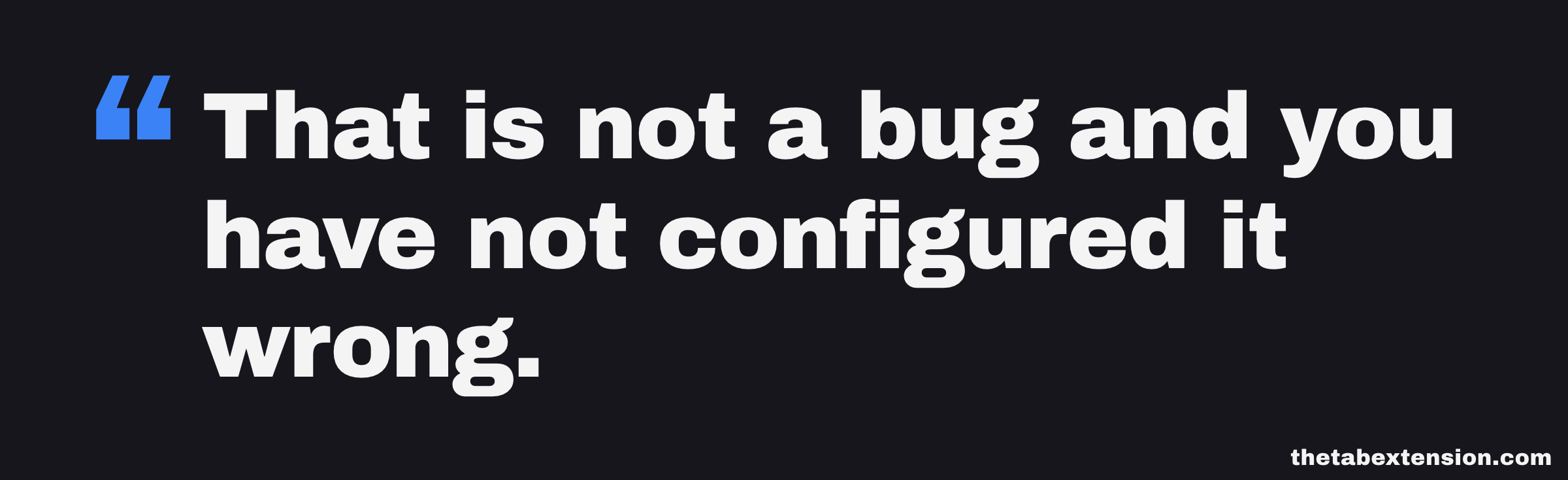
Memory Saver unloads the contents of inactive tabs. It does not remove the tabs. Memory Saver solves a RAM problem and does not touch the attention problem, which for most people with too many tabs is the one that hurts. That is not a bug and you have not configured it wrong. It is the feature working exactly as designed and hitting the edge of what it can do.
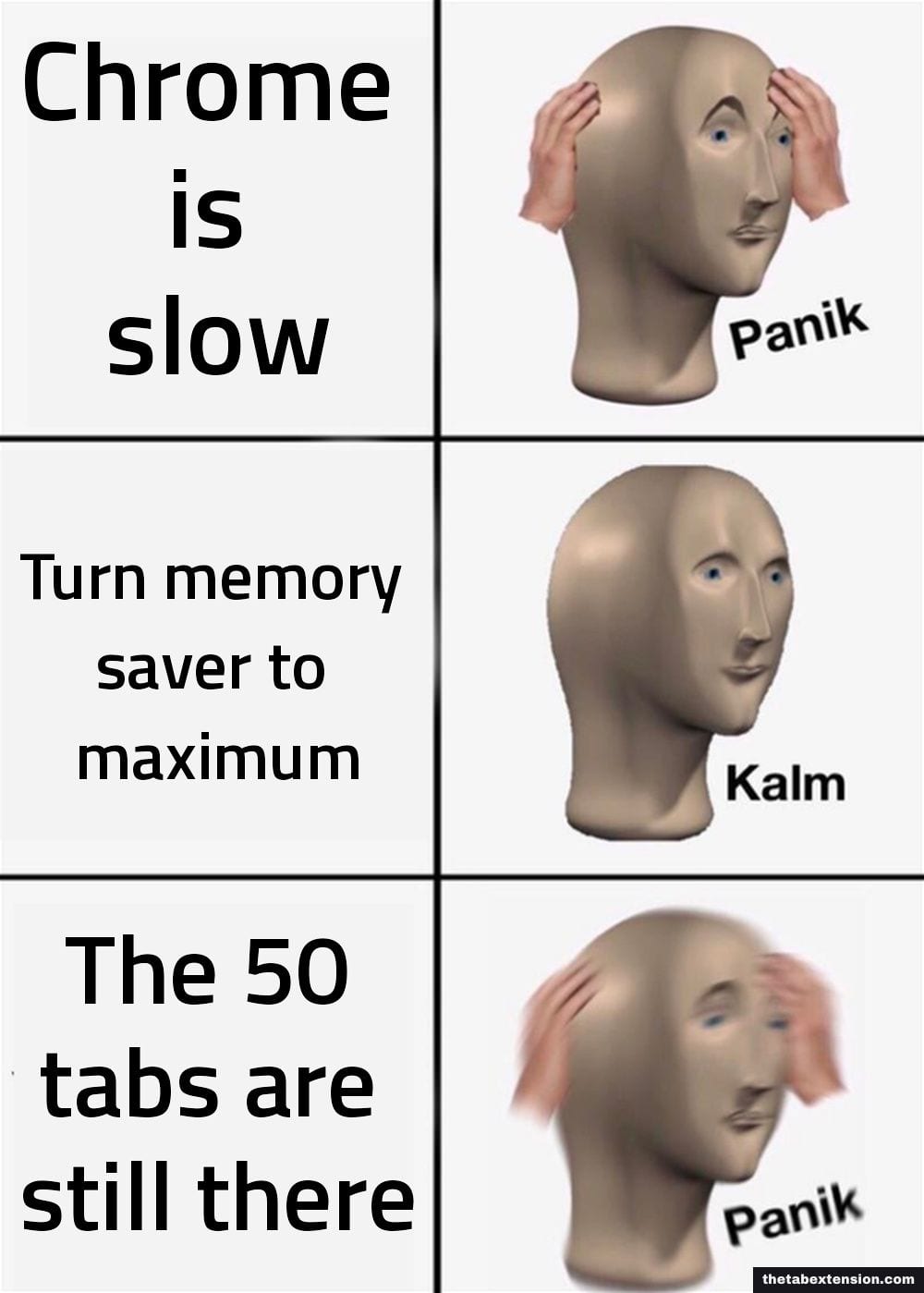
Nearly everyone who searches for this feature has already found it. It is on, it is set to Balanced, and Chrome is still unpleasant to use. Your tab strip still holds 50 titles, each one still shows up in your tab search, each one is still an unfinished thing your brain is tracking, and clicking any of them still triggers a reload that costs you a second or two of waiting.
There is a second limit. Deactivated tabs give the memory back only while you leave them alone. Return to a deactivated tab and it reloads, taking the memory again. If your working pattern is to cycle through 30 tabs during the day, you end up paying the reload cost repeatedly and holding much of the memory anyway.
The honest fix is a second layer. Memory Saver handles the tabs you are actively working in. Something else has to handle the tabs you are finished with but afraid to close, because those are the majority. That means saving them somewhere you trust and clearing them out of the strip entirely, which is what a tab manager does. If you are not sure what that category involves, start with what a tab manager is and the four kinds that exist. If you already know and just want the field, there is a roundup of OneTab alternatives, and if you are weighing the two names that come up most often, Toby vs OneTab covers that specific decision.
What does Memory Saver cost you?
The price of Memory Saver is reload latency and lost page state. A deactivated tab has to be rebuilt when you click it, so you wait for the page to load a second time, and on a slow connection you wait as long as you did the first time. Chrome restores the page, not your session inside it, so anything the page was holding in browser memory is gone: a live socket, a partially rendered dashboard, a long list you had scrolled deep into.
Web apps vary enormously in how gracefully they handle this. A well-built one restores from the server and you barely notice. A poorly built one drops you back at the top of an empty view and makes you navigate again, which is a worse outcome than the memory you saved.
The reload also spends bandwidth. On a metered or capped connection, cycling repeatedly through heavy tabs that keep being deactivated and re-fetched is a real cost, and Maximum mode makes it worse.
What is not on this list is data loss from a form, because Chrome refuses to deactivate a tab with a partially filled form in it. The old warning about Memory Saver eating your half-written comment does not apply.
Memory Saver or a tab manager: which one do you need?
They solve different problems and most heavy tab users end up with both. Memory Saver reduces what your open tabs cost the machine while leaving every tab open. A tab manager saves tabs to a list and closes them, which returns all of their memory and empties the tab strip at the same time. Memory Saver is a resource setting; a tab manager is a workflow change.
| What you are comparing | Chrome Memory Saver | Tab manager extension |
|---|---|---|
| What happens to the tab | Page unloaded, tab stays | Tab saved to a list, then closed |
| Tab strip after | Unchanged | Empty |
| Memory returned | What the deactivated tabs held, until you click back | Everything those tabs held, because they are gone |
| Organisation | None | Groups, dates, names, depending on the tool |
| Search across saved tabs | Not applicable | Yes, in tools that have it |
| Export and backup | No | Usually, and the format matters |
| Getting a tab back | Click it, wait for reload | Open it from the saved list |
| Effort to adopt | None, already on | A habit to build |
| Cost | Free, built in | Free for most, some have paid tiers |
What else reduces Chrome's memory use?
Start with Chrome Task Manager, because it names the processes that are actually heavy on your machine and saves you guessing at which advice applies to you. From there the levers are auditing extensions, turning on hardware acceleration, stopping Chrome from running in the background, and restarting the browser occasionally. Clearing your cache is not one of them, despite how often it is recommended.
Switching browsers is the lever people reach for that mostly is not one. There is no trustworthy public answer to which browser uses least at 100 tabs, and what differs between them is tab groups, vertical strips and workspaces rather than memory.
The largest single reduction available is closing tabs, and it is the one people avoid, because closing a tab feels like a decision you might regret. That is the actual obstacle.
It also has to be done in the right units to show up at all. Chrome frees memory when a renderer process exits, and one renderer process can be holding several of your tabs, so closing tabs one at a time can return nothing while closing every tab of one site returns the lot.
Audit your extensions
Open Chrome Task Manager and sort by memory. Extension processes appear with an "Extension:" prefix, and the total is often surprising.
Be careful about what that total means, because the usual version of this advice is wrong. An extension sitting idle is not quietly holding memory all day. Chrome ends an extension's service worker after 30 seconds of inactivity and revives it when an event arrives, so an extension you have not touched today may own no process at all. [6]
The extensions that cost you continuously are the ones injecting content scripts, which Chrome's own documentation describes as running in the context of the web pages themselves. [7] That cost is charged to every page the script is injected into, not to the extension's own row, so broad site access plus a script on every page is the shape to look for. The fix is not clever: disable the ones you do not use, remove the ones you have forgotten about, and re-check the total.
Check hardware acceleration
Under Settings, then System, "Use hardware acceleration when available" hands rendering work to the GPU. It is on by default and generally worth leaving on. On older or flaky GPUs it can cause visual glitches, which is the one case for turning it off.
Stop Chrome running when it is closed
Also under Settings, then System, is "Continue running background apps when Google Chrome is closed". With it enabled, closing the window does not end the process. If you close Chrome expecting to get the memory back and do not, this setting is why.
Clearing the cache will not help
The cache the Clear browsing data button empties is stored on disk. Clearing it frees storage and forces every cached asset to be fetched again, and it will not lower the number in your system monitor. It gets recommended constantly for memory problems and it is the wrong tool. Clear it when you are debugging a stale asset, not when Chrome is heavy.
What is the save-and-close workflow?
Save-and-close means writing every open tab to a saved list in one action, then closing all of them. The tab strip goes empty, every tab's memory is genuinely released rather than temporarily loaned, and nothing is lost, because the list holds the URLs and titles and you can restore any of them later. It is the same move Memory Saver makes, taken to the point where the tabs stop existing in the strip.
The reason it works is not memory. Closing 40 tabs at once requires no decisions. Closing them one at a time requires 40, and the decision is what stops people, so the tool removes it.
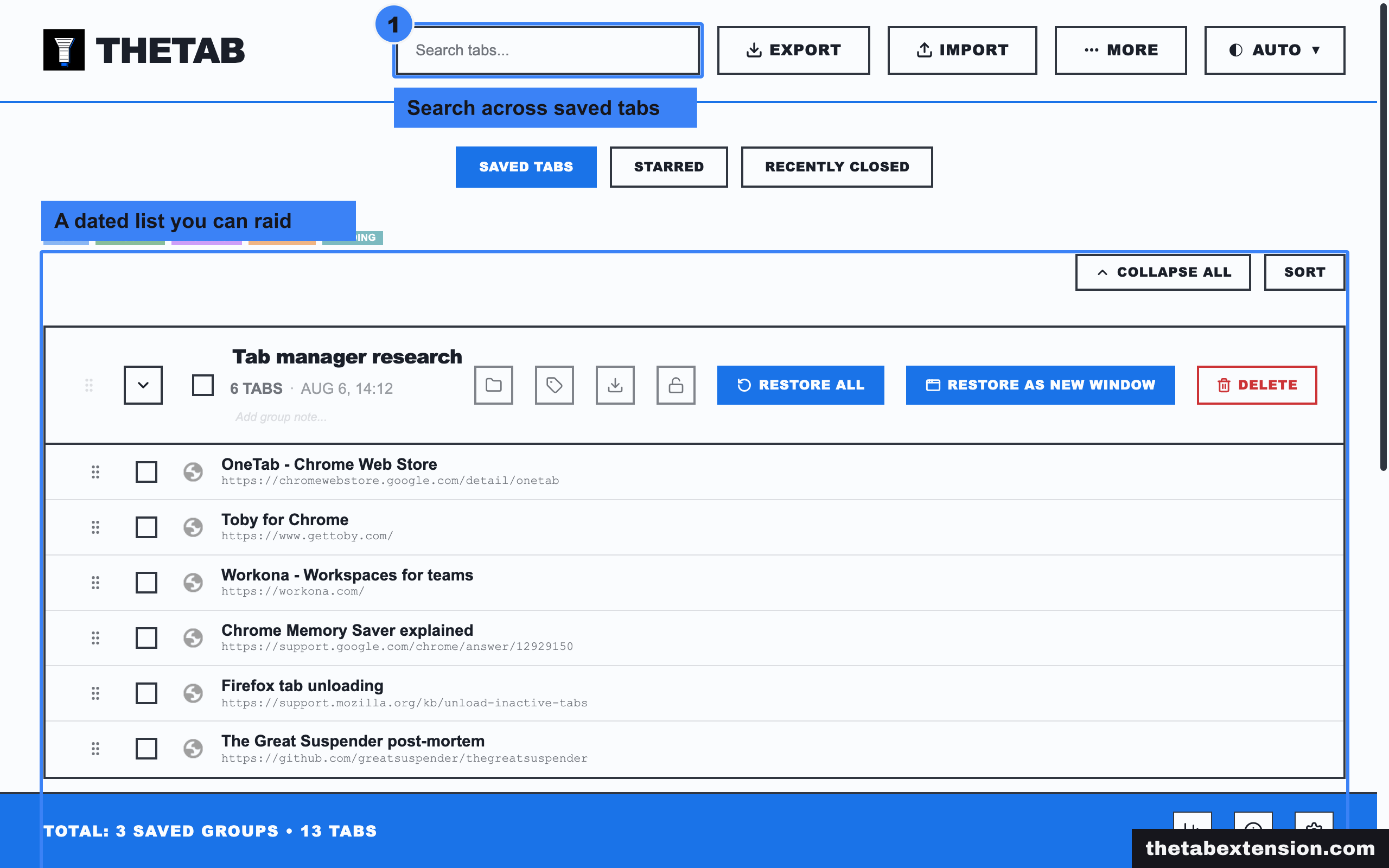
In practice, one save at the end of a work session is enough. You finish with the thing you were doing, save the window, close it, and open tomorrow with an empty browser and a dated list you can raid if you need to. Most of the time you will not need to, and finding that out is the part that changes behaviour.
The obvious failure mode is the list becoming its own graveyard. A save-and-close archive you cannot search is a place tabs go to be forgotten rather than found, which is fine if forgetting them was the honest outcome and useless if it was not. Search across saved tabs is the feature that decides which of those you get, and it is the first thing to check on any tool in this category.
Chrome Memory Saver FAQ
The questions below are the ones that decide whether Memory Saver is doing anything useful on a given machine.
Will Memory Saver delete my tabs?
No. Memory Saver unloads the page from memory and leaves the tab in the tab strip. Clicking it reloads the page. Nothing is closed and no history is removed.
Is Memory Saver on by default?
Yes. Chrome 110, in February 2023, is the release that turned it on by default on Windows, macOS and ChromeOS. If you have not deliberately turned it off since then, it is running.
Will a video call or a YouTube tab get suspended?
No. Google's help documentation lists active audio or video, including calls, and screen sharing among the conditions that prevent a tab being deactivated. You do not need to add meeting or streaming sites to the exclusion list.
Can I make Chrome deactivate one specific tab right now?
Not through the settings UI. The exclusion list only works in the other direction, protecting sites from deactivation. The internal chrome://discards page has a per-tab Discard button, but it is an unsupported Chromium debug page rather than a feature.
Does Memory Saver work with Chrome tab groups?
Tabs inside a group are treated like any other tab. There is no group-level exclusion: the "Always keep these sites active" list matches on web addresses, not on groups, so protecting a whole group means listing the sites in it.
How much battery does Memory Saver save?
Google has not published a figure for Memory Saver alone, and neither have we. The battery feature in Chrome is Energy Saver, a separate setting on the same Performance screen, which limits background activity and visual effects when your device is unplugged or low on charge.
Does Memory Saver conflict with tab manager extensions?
No. They operate at different points. Memory Saver acts on tabs that are currently open, and a tab manager acts when you save and close them. Running both is the normal configuration.
Which mode should I use?
Balanced, unless you have a specific reason. Move to Maximum if the machine is short on RAM and you can tolerate more reloading, or to Moderate if reload waits annoy you more than memory pressure does.
Where this leaves you
Memory Saver is worth having on, it is almost certainly already on, and the correct expectation for it is modest: it reclaims memory from tabs you are ignoring, and it hands that memory straight back the moment you stop ignoring them. Within that boundary it works.
The reason it disappoints so many people is that they arrived at the setting carrying a different problem. A browser holding 50 tabs holds 50 unfinished things rendered as 50 identical rectangles, and no amount of unloading changes that count. The setting was never going to fix it. Something that empties the tab strip might.
SOURCES
Every factual claim in this article traces to a source below. Where we could not source a claim, we removed it rather than softening it.
Memory Saver was announced on 8 December 2022 with a staged rollout and no Chrome version named, and this post carries Google's only published memory figure, the vendor claim of up to 40% and 10GB less memory across both new performance settings. No 30% figure appears anywhere in it.
Chrome 110 stable, February 2023, is the release that turned Memory Saver on by default on Windows, macOS and ChromeOS. Tier 3 because Google's own announcement never states a version number.
Read 16 August 2026, and dated with that read date because Google revises this page in place. It carries the Moderate, Balanced and Maximum mode descriptions, the settings path, the Always keep these sites active exclusion list with its subdomain and path matching rules, the Inactive tabs appearance toggle that rings the icon of a deactivated tab, and the conditions that prevent a tab being deactivated, including active audio or video, screen sharing, notifications, downloads, partially filled forms, pinned tabs and connected USB or Bluetooth devices.
The three Memory Saver levels and the performance issue alerts arrived on 29 October 2024, roughly two years after launch, and Balanced is described as weighing browsing habits against system needs.
Chrome 110 was promoted to the stable channel for desktop on 7 February 2023. It carries the date only, not the Memory Saver default.
Chrome ends an extension service worker after 30 seconds of inactivity, receiving an event or calling an extension API resets that timer, and an incoming event revives a dormant service worker.
Content scripts are files that run in the context of web pages, in an isolated world, using the standard DOM to read and change the pages the browser loads.
Sleeping tabs reduces CPU, battery and memory usage by putting idle background tabs to sleep, Edge uses heuristics to skip tabs doing useful background work such as notifications, sound and video, and sleeping tabs is on by default.
Firefox automatically unloads tabs to avoid crashing when the system's available memory is low, a memory pressure detector triggers the unloader, and tabs playing media or using Picture-in-Picture or WebRTC are excluded while pinned tabs are deprioritised.
Read 16 August 2026. Shift + Esc opens the Chrome Task Manager in the Windows and Linux shortcut list; the Mac list on the same page carries no Task Manager shortcut.
On ChromeOS the Task Manager shortcut is search + esc.