
Chrome does not show you an extension's permissions when you install it. It shows you warnings, and those are a different list, generated from the first one by a set of rules that throws information away. More than forty permissions produce no line in that box at all. One permission can delete another permission's line. And the most alarming sentence Chrome prints is usually generated by the dullest thing an extension can ask for.
None of that is hidden. Google publishes the permission-to-warning table, Chromium publishes the rules that collapse it, and between them they explain every strange thing you have ever read in an install prompt.
Everything below comes from Chrome's own documentation and Chromium's own source, read on 27 August 2026, plus two measurements against Chrome 151. Both methods are written out, because a claim about what a browser prints is worth nothing unless you can print it yourself.
What is Chrome actually showing you in that box?
A generated summary, not the manifest. An extension declares permissions in four manifest fields, and Chrome runs the two non-optional ones through a rule table that decides which English sentences to print. [4] Some permissions map to one sentence, some map to nothing at all, and some quietly delete a different permission's sentence on their way past. The box is that table's output. In every real extension it is shorter than its input.
The four fields are worth knowing, because two of them never appear at install time:
| Manifest field | Granted when | Shows in the install box |
|---|---|---|
permissions | At install | Yes, if the permission has a warning |
host_permissions | At install | Yes |
optional_permissions | Later, when the extension asks | No |
optional_host_permissions | Later, when the extension asks | No |
An extension that puts downloads in optional_permissions is not asking for it now. It is asking for the right to ask you later, at which point Chrome will show a prompt of its own. [4] That is the well-behaved pattern, and it is one of the few things in a manifest that reliably distinguishes a careful developer from a careless one.
Which extension permissions produce no warning at all?
Around forty-five of them, and the list contains several you would expect to see. Chrome's permissions reference marks each entry with its warning string or with nothing, and the nothing column includes storage, cookies, scripting, webRequest, activeTab, alarms, contextMenus, identity, offscreen, sidePanel and unlimitedStorage. [1] Firefox's equivalent table marks nearly the same set as silent. [11]
cookies is the one that stops people. An extension can declare it and you will never be told.
The reason it is safe to hide is that the permission does nothing on its own. Chrome's documentation states that to use the cookies API you must declare "cookies" along with host permissions for any hosts whose cookies you want to access. [6] The host permission is what carries the risk, and the host permission is what Chrome warns about. webRequest is built the same way, and its documentation says so in the same shape. [7]
So the silence is not carelessness. It is a deliberate decision that a capability which cannot reach your data on its own does not deserve a sentence that will frighten you. Whether you agree with that decision is a separate question from whether you know it is being made, and until you have read the table you do not know.
activeTab is the interesting member of the silent set, because it is the one that replaces something loud. It grants an extension access to the tab you are on, but only after you invoke the extension yourself, by clicking its toolbar icon, choosing its context menu item, pressing its keyboard shortcut or accepting its omnibox suggestion. The grant dies when you navigate to another origin or close the tab, and Chrome shows no warning for it at all. [5] An extension that uses activeTab where it could have demanded access to every site has chosen the version of itself that can see less. That choice is invisible in the install box, which is exactly the problem with reading only the install box.
It is not invisible everywhere, though. There is one screen where activeTab shows up in the most alarming wording Chrome owns, and it comes up further down.
Why does a tab manager want to read your browsing history?
Because tabs is printed as "Read your browsing history", and a tab manager cannot list your tabs without it. This is the single most misread line in Chrome, and the mapping is right there in the reference table: the tabs permission produces the string "Read your browsing history". [1] It does not grant access to the History API. That is a separate permission, history, which produces a longer and genuinely broader sentence: "Read and change your browsing history on all signed-in devices." [1]
The difference matters. tabs lets an extension read the URL, title and favicon of tabs that are open right now. history lets it read and rewrite the record of everywhere you have been, across every device you are signed into. Chrome describes the first one using the words most people associate with the second.
Here is our own extension, so the example is one we can be held to. TheTab's shipped manifest declares thirteen permissions plus one optional:
"permissions": [
  "storage", "unlimitedStorage", "tabs", "tabGroups", "activeTab",
  "sidePanel", "contextMenus", "alarms", "notifications", "favicon",
  "offscreen", "clipboardWrite", "bookmarks"
],
"optional_permissions": ["downloads"]
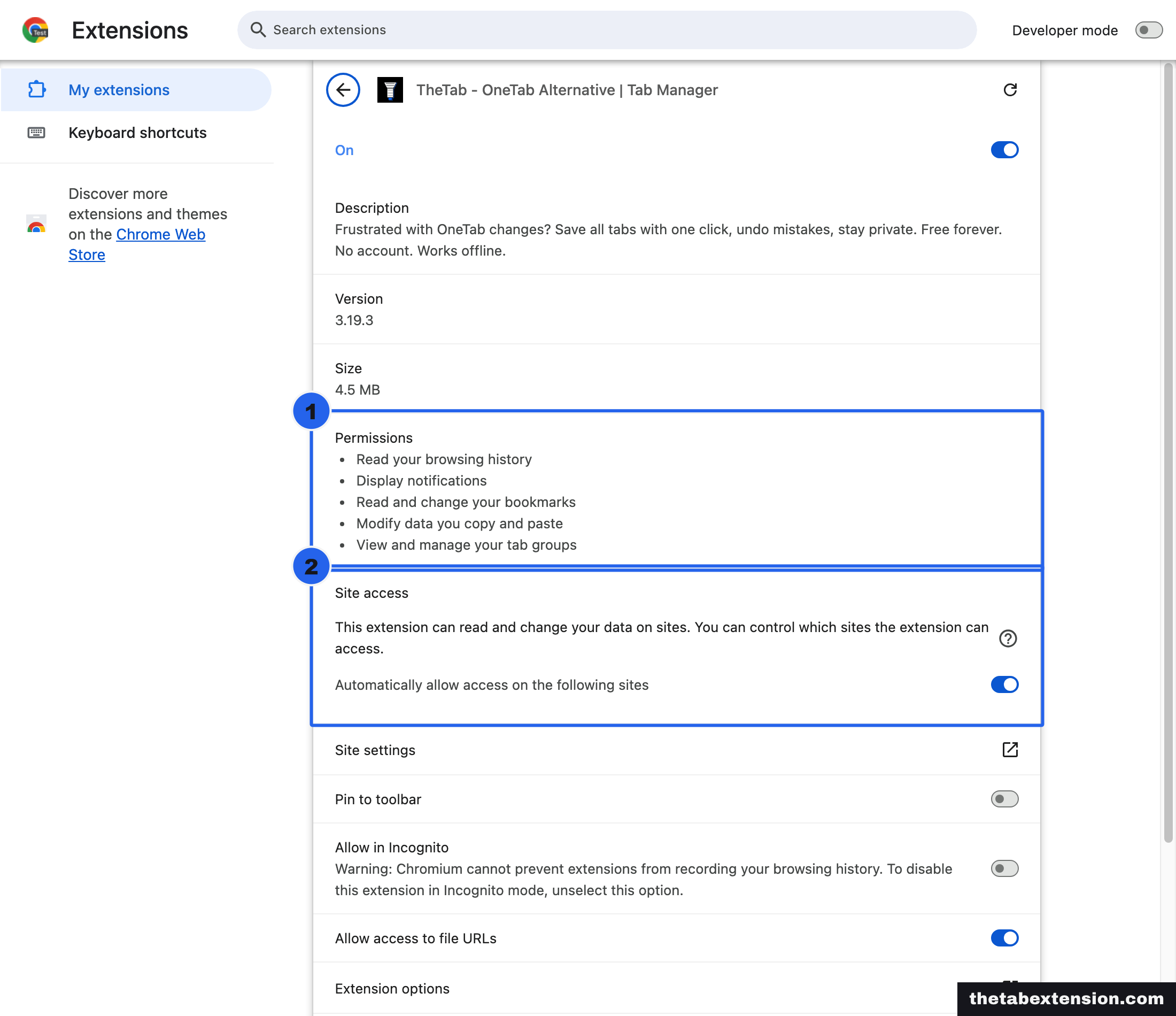
Chrome prints five lines for that.
| What Chrome prints | Which permission produced it |
|---|---|
| Read your browsing history | tabs |
| Display notifications | notifications |
| Read and change your bookmarks | bookmarks |
| Modify data you copy and paste | clipboardWrite |
| View and manage your tab groups | tabGroups |
Eight of the thirteen never reach the box. Seven of those have no warning of their own; the eighth is hidden by another permission, which is the next section. downloads is missing for a third reason, being optional, so it gets a prompt of its own on the day the export feature is first used.
Which leaves the line at the top. It reads like a browsing-history grab and it is what a tab manager needs to know which tabs you have open. We would rather it said what it means. It does not, and there is nothing an extension developer can do about the wording.
Can one permission hide another one's warning?
Yes, and this is where the summary stops being merely shorter than the manifest and starts being differently shaped. Chrome's own guidance says it plainly: "some permissions may not display warnings when paired with other permissions. For example, the tabs warning won't show if the extension also requests <all_urls>." [2]
The rules behind that live in chrome_permission_message_rules.cc in the Chromium tree, and they are readable without knowing any C++. Each rule names one required permission and a list of permissions it absorbs. The rule keyed on kTab absorbs kFavicon and kTopSites. The rules keyed on kHistory, kWebNavigation and kProcesses absorb the same two. The rules keyed on kFullAccess, kHostsAll and kHostsAllReadOnly absorb kFavicon, kTab and kTopSites, among a longer list. [3]
That is a hierarchy: broad access swallows narrow access, and only the widest sentence is printed.
You can watch it happen, and it is worth doing once. Reading a rule table and watching a line vanish are different kinds of conviction.
Look again at the five lines above. TheTab declares favicon, whose documented warning is "Read the icons of the websites you visit", [1] and that sentence is not among them.
The method, so the result is checkable rather than asserted. Load the shipped Chrome build of TheTab as an unpacked extension in Chrome 151, open chrome://extensions/?id=<the id>, and read the Permissions block. Then copy the same build to a second folder, delete "tabs" from the permissions array in its manifest.json, load that copy, and read the block again. Nothing else changes.
| Line | With tabs | With tabs removed |
|---|---|---|
| Line 1 | Read your browsing history | Read the icons of the websites you visit |
| Line 2 | Display notifications | Display notifications |
| Line 3 | Read and change your bookmarks | Read and change your bookmarks |
| Line 4 | Modify data you copy and paste | Modify data you copy and paste |
| Line 5 | View and manage your tab groups | View and manage your tab groups |
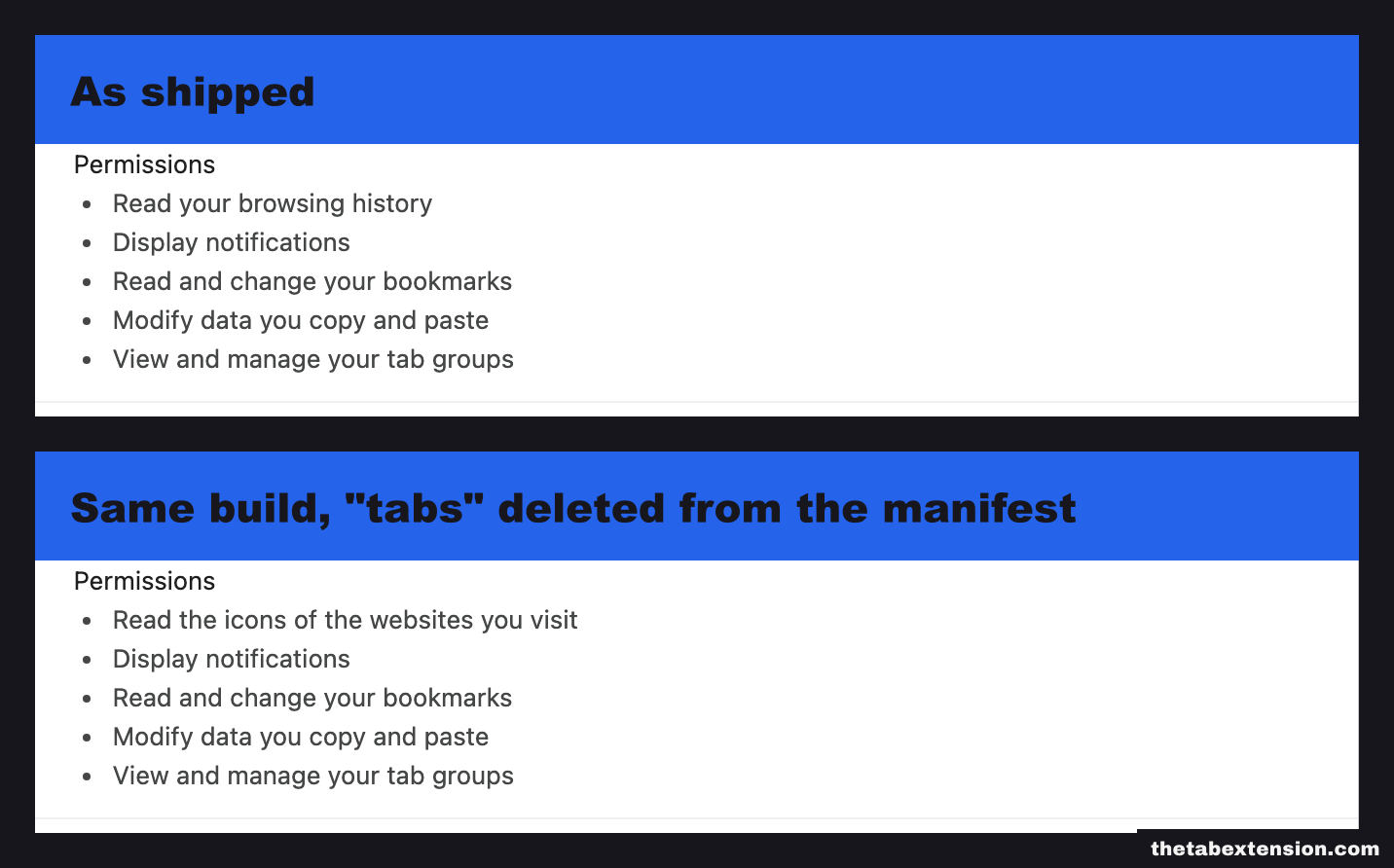
Same number of lines. Different first line. The favicon warning was suppressed the whole time, sitting underneath tabs exactly as rule 6 of that file says it should. Remove the permission on top and the one underneath surfaces.
The practical consequence is the one to carry away. A short warning list can mean an extension asks for little, or it can mean one broad permission ate all the narrow ones. Those two situations look identical from the install box, and they are opposites.
Which line on the list actually matters?
"Read and change all your data on all websites." If it is there, the rest of the list is close to noise, because that sentence is generated by host permissions broad enough that Chromium's rules discard kFavicon, kTab, kTopSites and everything else in the same family. [3] The extension can read the contents of every page you open and change them before you see them.

Several permissions produce that same sentence without any host pattern at all, because they amount to the same power by another route: debugger, pageCapture, proxy, tabCapture and webAuthenticationProxy each print it. [1] An extension asking for debugger is asking for the whole browser, and Chrome tells you so in the same words it uses for <all_urls>.
None of which is a reason to refuse every extension that asks. An ad blocker, a password manager and a grammar checker all genuinely need to see page content, and the ones that do not ask for it are the ones that cannot work. But this line is the whole decision, and the four under it are detail. Ask what the extension does that requires reading every page. If you cannot answer that from the store listing in one sentence, that is your answer.
Where do you actually see the list before installing?
The install confirmation dialog is the first place and the worst one, because it appears at the moment you have already decided. Two better ones exist.
The store listing's Privacy practices tab. On a Chrome Web Store page it sits alongside Overview and Reviews, and it holds a different kind of information from the permission box: not what the extension can do, but what the developer has declared it does with what it collects. Developers must tick which of nine categories apply, and Google's documentation names them: personally identifiable information, health information, financial and payment information, authentication information, personal communications, location, web history, user activity and website content. [9]
Ours declares one of the nine. TheTab's privacy tab says User activity, which the listing defines as "network monitoring, clicks, mouse position, scroll, or keystroke logging". [10] That is there because the extension sends anonymous product-usage events, and it is the honest box to tick even though the phrasing is broader than what we do. Alongside it sit three certifications every listing carries: that data is not sold to third parties outside the approved use cases, not used or transferred for purposes unrelated to the item's core functionality, and not used to determine creditworthiness or for lending. [10]
Read this tab against the permission list rather than instead of it. A short permission list with Personally identifiable information ticked is stranger than a long permission list with nothing ticked, and only reading both surfaces it. Google's own policy says the disclosures "should be consistent with the existing privacy policy URL" the developer supplied, [9] which gives you a third thing to compare when the first two disagree.
The extension's own details page, after installing. chrome://extensions, then Details on the extension, is the same computed list the install box showed you, except you can read it without a dialog waiting for a click. It is also where the site-access control lives, which the install box does not mention at all.
What can you change after you have said yes?
Site access, and it is the strongest control Chrome gives you. From Extensions, Manage extensions, Details, Chrome offers three settings for an extension that asked for host permissions: access only when you select the extension, access on the current site, or access on all sites. [8]
The first of those is close to converting a permanent grant into activeTab after the fact. The extension gets the page only when you click it, and gets nothing the rest of the time. It breaks anything that has to run automatically, and an ad blocker set this way stops blocking, so it is not a free win. For the large category of extensions you invoke deliberately, a screenshot tool, a clipper, a converter, it costs nothing and removes a standing grant to read everything you browse.
The one place activeTab stops being quiet
The Site access section on that page is also where the tidy story about activeTab breaks, and since it breaks against our own extension it is worth showing rather than skipping.
TheTab requests no host permissions. It has no host_permissions array and no content scripts, and its install box says nothing about websites. Its Site access section says this:
This extension can read and change your data on sites. You can control which sites the extension can access.
Same experiment as before, one permission at a time. Delete activeTab from the manifest of the same build and reload it, and that sentence is replaced by "This extension has no additional site access." Nothing else in the manifest changed, and no other line on the page moved.
So activeTab is the permission Chrome deliberately does not warn about at install, described on the details page in the same verb it uses for reading every page you open. Both descriptions are defensible. activeTab genuinely can read and change the page, and it genuinely cannot do so until you click the extension, and no single sentence carries both halves. The install box picked the reassuring half and the details page picked the alarming one, and a reader who sees only one of them gets a skewed picture in whichever direction they happened to look.
The practical version: an extension whose Site access section names specific sites, or says it has none, is telling you something real. One that says it can read and change your data on sites, with nothing listed underneath, is usually an activeTab extension being described in the loudest available terms.
The other thing worth knowing is what happens when an extension updates. Chrome disables an extension that adds a permission carrying a new warning until you accept the new list. [2] That is a real protection and it is also the exact boundary of what a permission list can promise you: it constrains what a version may do, and it re-asks when the constraint widens. It says nothing about what the code inside those constraints actually does, and nothing about who will own the extension by the next release.
What does Firefox show, and where does it differ?
Different words, mostly the same lists, and one thing Chrome has no equivalent for. Firefox's install panel describes broad host access as "Access your data for all websites", tabs as "Access browser tabs", history as "Access browsing history", bookmarks as "Read and modify bookmarks" and nativeMessaging as "Exchange messages with programs other than Firefox". [11] The tabs wording is plainer than Chrome's and describes the same capability.
Firefox's silent set also looks familiar: cookies, storage, webRequest, alarms, menus, identity, idle, unlimitedStorage and activeTab all install without a word. [11] The two browsers made the same call about the same permissions, independently, which is a reasonable argument that the call is defensible.
The thing Chrome has no equivalent for is a declared data-collection list in the manifest itself. Since 3 November 2025, every new Firefox extension must state whether it collects or transmits personal data, through browser_specific_settings.gecko.data_collection_permissions. [13] The values are specific rather than categorical: personallyIdentifyingInfo, healthInfo, financialAndPaymentInfo, authenticationInfo, personalCommunications, locationInfo, browsingActivity, websiteContent, websiteActivity, searchTerms, bookmarksInfo, and the special value none for an extension that collects nothing. [12]
Required types appear in the install prompt beside the permissions. Optional ones do not, with one exception: technicalAndInteraction, the telemetry-shaped one, appears in the install flow as a toggle you can switch off before you finish installing. [12] Afterwards, all of it is reviewable and changeable in about:addons under Permissions and data. [12]
Two limits are worth stating rather than glossing. The requirement applies to new extensions only, not to new versions of extensions that already existed, [13] so an add-on you installed in 2023 may declare nothing. And a declaration is a statement by the developer, verified by review rather than by the browser. It is the same kind of promise as the Chrome Web Store privacy tab, made in a place a machine can read.
The version of this you can do in thirty seconds
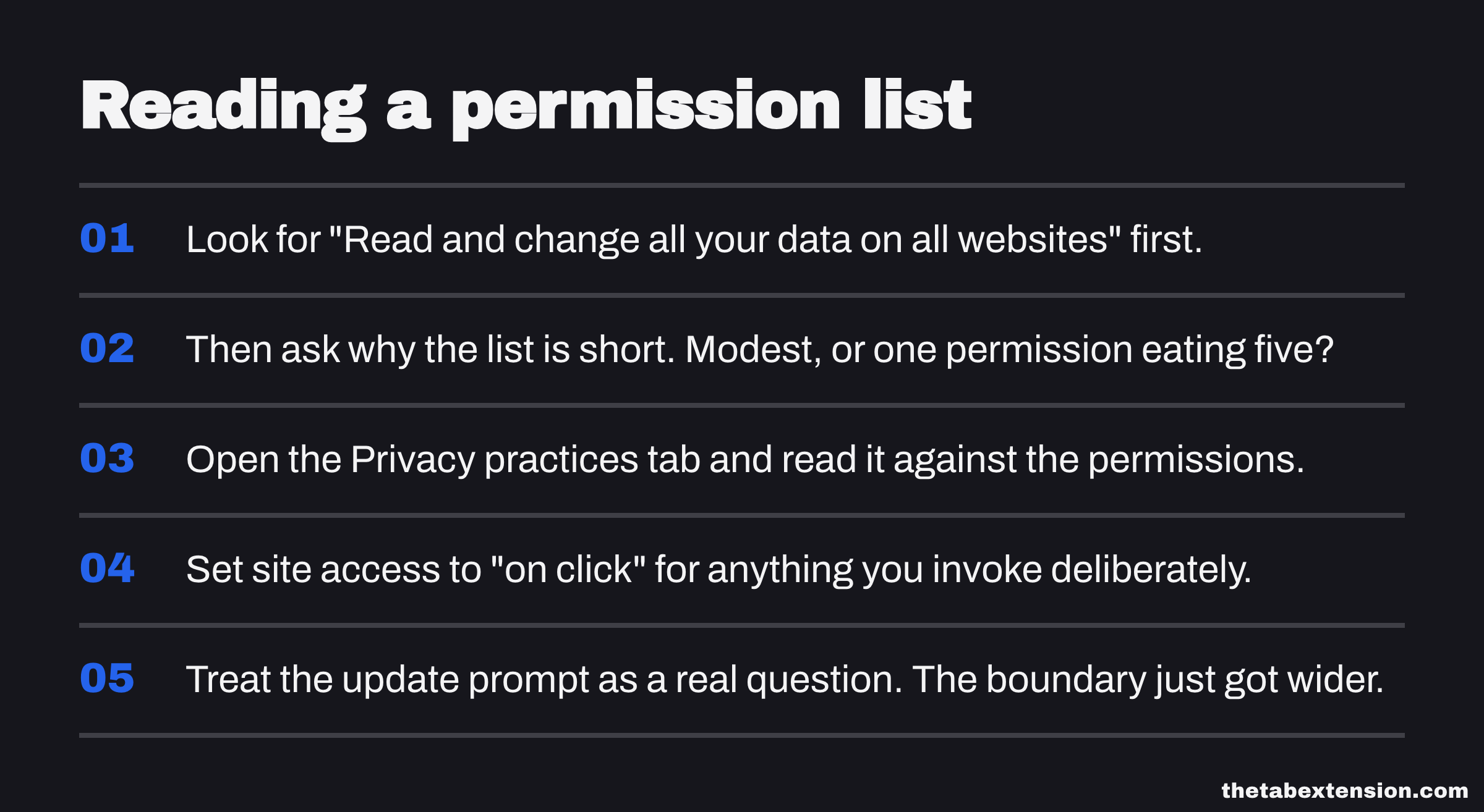
Nobody is going to read a Chromium source file before installing a screenshot tool. The compressed version, in the order that gets you the most for the least:
- Look for "Read and change all your data on all websites" first. If it is there, that is the decision. Everything else on the list is detail.
- Then ask why the list is short. A short list is either a modest extension or one broad permission eating five narrow ones, and those look the same.
- Open the Privacy practices tab and read it against the permissions. Disagreement between the two is the signal, in either direction.
- Set site access to "on click" for anything you invoke deliberately rather than anything that runs on its own.
- Treat the update prompt as a real question. Chrome disabling an extension until you accept a new permission is the one moment it will interrupt you about this, and it only happens when the boundary got wider.
The permission list is a good tool used badly. It is worth ten seconds more than most people give it, and it will never be worth trusting on its own, because it describes a boundary rather than a behaviour. A tab manager asking to read your browsing history and a keylogger asking to read your browsing history print the same sentence.
That is also why the rest of the evidence matters: how the extension explains itself, whether it publishes anything you can check, and whether its claim to keep your data on your machine is one you can verify rather than one you have to take. If you are still working out what kind of tool you need before you get to the question of trusting one, the four families of tab manager is the place to start, and the roundup of extensions we actually run lists what each one asks for. The other direction is worth a look too: Firefox ships a good deal of tab machinery in the browser itself, and the best permission list is the one you never have to grant.
SOURCES
Every factual claim in this article traces to a source below. Where we could not source a claim, we removed it rather than softening it.
Chrome's own table of every extension permission and the exact warning string it produces. It lists "tabs" as "Read your browsing history", "favicon" as "Read the icons of the websites you visit", "bookmarks" as "Read and change your bookmarks", "clipboardWrite" as "Modify data you copy and paste", "tabGroups" as "View and manage your tab groups", "notifications" as "Display notifications", "history" as "Read and change your browsing history on all signed-in devices", and "management" as "Manage your apps, extensions, and themes". It also names the permissions that produce no warning at all, a list that includes "storage", "cookies", "scripting", "webRequest", "activeTab", "alarms", "contextMenus", "identity", "offscreen", "sidePanel" and "unlimitedStorage".
States that "some permissions may not display warnings when paired with other permissions. For example, the "tabs" warning won't show if the extension also requests "<all_urls>"." Also states that an extension adding a permission that triggers a new warning is disabled until the user accepts it, and that "activeTab" does not display a permission warning.
The rule table that turns a set of permissions into the list of sentences Chrome prints. Each rule names a required permission and the permissions it absorbs. The rule keyed on kTab absorbs kFavicon and kTopSites; the rules keyed on kHistory, kWebNavigation and kProcesses absorb the same two; and the rules keyed on kFullAccess, kHostsAll and kHostsAllReadOnly absorb kFavicon, kTab and kTopSites among others.
Defines the four manifest fields that carry permissions: "permissions", "optional_permissions", "host_permissions" and "optional_host_permissions". Host permissions are declared as match patterns, and only the two non-optional fields are granted at install time.
States that activeTab grants temporary access to the current tab when the user invokes the extension, through the toolbar icon, a context menu item, a keyboard shortcut or an omnibox suggestion; that access is revoked on navigation to another origin or when the tab closes; and that it "displays no warning message during installation".
States that "to use the cookies API, declare the "cookies" permission in your manifest along with host permissions for any hosts whose cookies you want to access", which is why the silent "cookies" permission cannot on its own read anything.
States that "you must declare the "webRequest" permission in the extension manifest to use the web request API, along with the necessary host permissions", and that webRequestBlocking is available only to policy installed extensions as of Manifest V3.
Chrome's user-facing instructions for the three site-access settings, described as access only when you select the extension, access on the current site, and access on all sites, changed from Extensions, Manage extensions, Details.
Names the nine data categories a Chrome Web Store developer must declare on the Privacy practices tab: personally identifiable information, health information, financial and payment information, authentication information, personal communications, location, web history, user activity and website content. States that "your disclosures are displayed to Chrome users, and should be consistent with the existing privacy policy URL that you provided to the Chrome Web Store under your developer account page."
Our own listing's privacy tab, cited as the worked example. It declares the "User activity" category, described on the listing as "network monitoring, clicks, mouse position, scroll, or keystroke logging", and carries the three certifications about not selling data, not using it outside the item's core functionality, and not using it for creditworthiness or lending.
Firefox's table of permissions and the exact text it shows users, including "Access your data for all websites" for broad host access, "Access browser tabs" for tabs, "Access browsing history" for history, "Read and modify bookmarks" for bookmarks, and "Exchange messages with programs other than Firefox" for nativeMessaging. It lists cookies, storage, webRequest, alarms, menus, identity, idle, unlimitedStorage and activeTab among the permissions that display no warning.
Names the data collection permission values an extension declares in its manifest, including personallyIdentifyingInfo, healthInfo, financialAndPaymentInfo, authenticationInfo, personalCommunications, locationInfo, browsingActivity, websiteContent, websiteActivity, searchTerms, bookmarksInfo, technicalAndInteraction, and the special value none. Required types appear in the install prompt; optional ones do not, except technicalAndInteraction, which the user can toggle during installation. Both are reviewable afterwards in about:addons under Permissions and data.
Mozilla's announcement that as of 3 November 2025 all new Firefox extensions must declare whether they collect or transmit personal data, through browser_specific_settings.gecko.data_collection_permissions. The requirement applies to new extensions only, not to new versions of existing ones, and the consent prompt ships in Firefox 140 for desktop and 142 for Android.