
An extension sees more of your browsing than almost any other software you install. It runs inside pages, often on every site, with access to what you have open and sometimes what you type. None of that means avoiding extensions; it means spending two minutes checking one before you install it, and most people never do, because it is not obvious what to look at.
Local storage is a claim you can verify
"Your data stays on your device" appears in a lot of listings. It is checkable, and the check takes about a minute.
Open the extension's page in the Chrome Web Store and scroll to the privacy section. Every listing has a developer-declared statement of what data is handled: personally identifiable information, browsing history, user activity, and so on. Read it as a list of what the extension touches, not a verdict on where the data goes. Google requires the disclosure "even when data is processed or stored locally on a user's device", and counts collecting, transmitting, using and sharing all as handling - so a purely local tool can be obliged to declare a category, and a declared category on its own convicts nobody.
What the declaration is good for is the follow-up. A listing that claims local storage in its description and declares browsing history in its privacy section owes you an explanation of the gap, and the place to find it is the linked privacy policy. If the two do not agree and nothing explains why, that is your answer.
Firefox makes the negative case cleaner. Since the addition of data collection declarations, an add-on can state required: ['none'] in its manifest, which surfaces in the listing as a hard statement rather than prose. That is worth more than the Chrome table, because "none" is unambiguous where a listed category is not. It is still a declaration and not an audit.
The second check is whether the extension needs an account, and whose account it is. Anything that syncs across devices has to keep your data somewhere. Usually that somewhere is the maker's own server, which is the opposite of local. Sometimes it is your browser's sync storage instead, which is a different bargain worth recognising: the data rides your Google or Mozilla account, the same one already carrying your bookmarks, and the extension maker never holds it. Sync is a useful feature and there is nothing wrong with wanting either version of it. But if there is no login, there is usually nowhere for the data to go.
Permissions, and which ones matter
The permission list is the other half. Most of it is boring, and a few entries are worth pausing on.
storageis the boring one. It is local key-value storage. Almost everything requests it.<all_urls>or "read and change all your data on all websites" looks alarming and often is not. Anything that modifies pages needs it, because it cannot know in advance which sites you will use it on. Judge it by what the extension is for. A tab manager probably does not need it. Something that draws on pages does.debuggeris the one to actually stop at. It attaches a devtools-protocol session to a tab, which is a lot of capability. There are legitimate uses, mostly around viewport and device emulation, and Chrome does not allow it to be requested optionally, so it appears at install time even for a feature you will never touch. If a listing asks for it, it should say in plain words which single feature it powers. If it does not say, that is your answer.- Anything requesting
cookies,webRequest, ornativeMessagingdeserves a specific justification in the listing.

A useful habit: read the permission list first, then the description, and see whether the description explains everything in the list. A permission the description never accounts for is the one worth asking about.
Where TheTab sits
Run the checks on us. TheTab keeps the archive in local browser storage and there is no TheTab account and no server of ours holding your tabs. But two backups are on by default, and both are worth naming rather than glossing: recent groups are mirrored into your browser's own sync storage so they survive a reinstall, and a "TheTab" folder in your bookmarks tracks your saved groups. If your browser account sync is on, your browser vendor moves those between your machines the way it moves your bookmarks. We never see them, and both switch off in Options - but "nothing ever leaves this machine" would be the wrong sentence, and it is the sentence a listing would be tempted to write.
That is the honest shape of the account check: the login involved is your browser's, not ours. Your tab history is a fairly detailed record of what you have been working on, and the safest place for it is the machine it came from. Export to JSON is there for when you want to move the whole archive yourself, which keeps you in control of the copy.
The trade is easier for some tools than others. A list collapser can stay local without losing anything, whereas a workspace tool built around shared collections cannot; the four kinds of tab manager is where that split comes from.
The one permission list we can explain from the inside
We also make Pixel Perfect Advanced, a design-overlay extension for frontend work. It is ours, so read this as a worked example rather than a recommendation. It is here because it is the only permission list in this article we can account for line by line.
The Chromium build requests four things: storage, sidePanel, <all_urls> and debugger.
storage and sidePanel are the boring ones. <all_urls> is the entry this article told you to judge by purpose, and the purpose is the whole product: an overlay has to draw on whatever page you are designing against, and it cannot know in advance which page that is. debugger is the one to actually stop at, and it powers exactly one feature: resizing the viewport to a target width without resizing your window. The Firefox build does not request debugger, because Firefox has no equivalent API.
Everything else sits in local extension storage, per site, with the overlay images in IndexedDB. There is no account and no server of ours, so apart from your own browser there is nowhere for any of it to go.
The short version
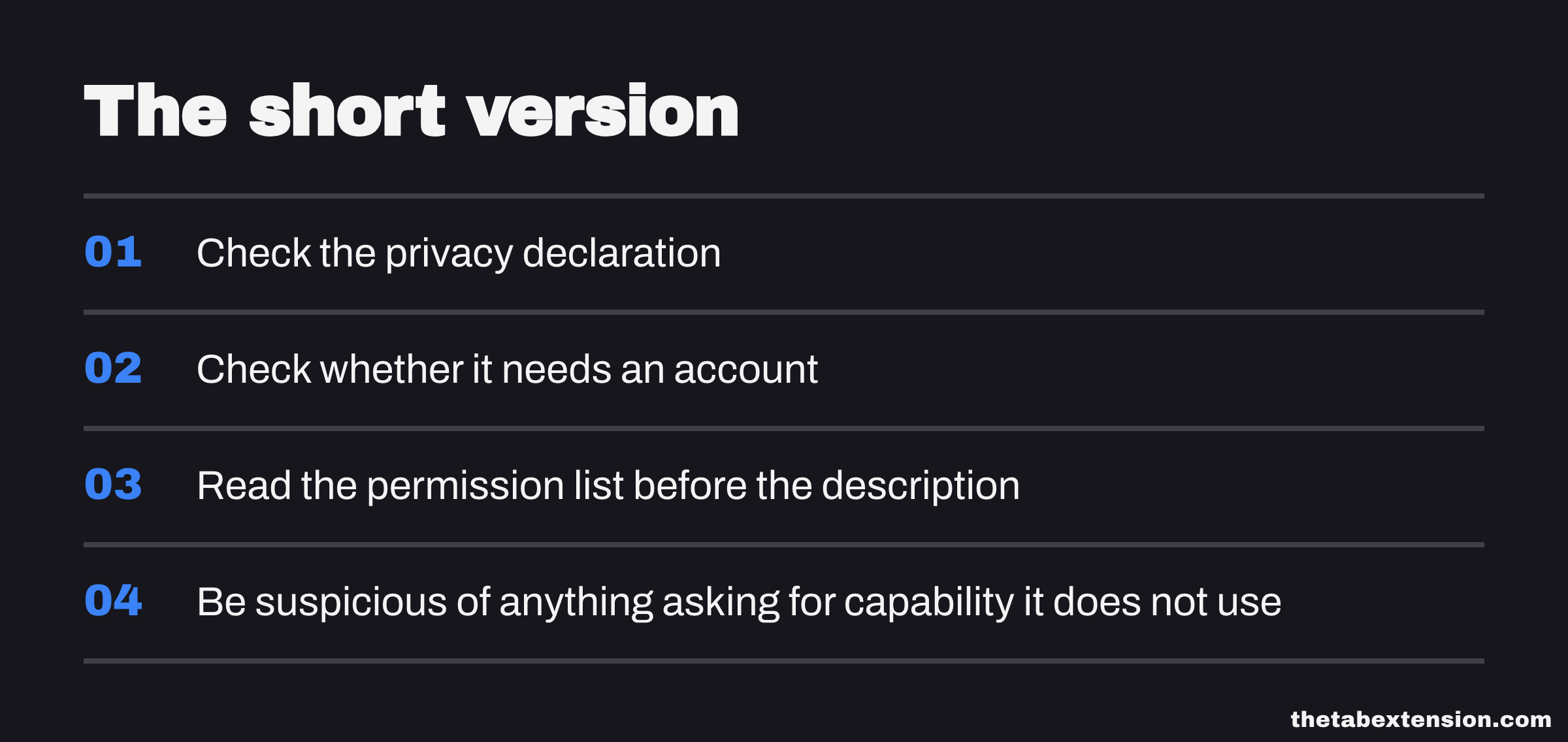
Read the privacy declaration as a list of what the extension touches, then check it against the description and the privacy policy. Check whether it needs an account, and whose account it is. Read the permission list before the description, and be suspicious of anything asking for capability the description never uses. For a lot of tools local-first is simply the correct design, not a premium feature.
If you want somewhere to practise the check, eleven productivity extensions verified against their live store listings lists the browsers each one runs on and which of them changed hands or went paid.
SOURCES
Every factual claim in this article traces to a source below. Where we could not source a claim, we removed it rather than softening it.
Google requires extensions to disclose how they handle user data "even when data is processed or stored locally on a user's device", and defines handling as collecting, transmitting, using or sharing - which is why a declared data category tells you what an extension touches, not where that data goes.
A Firefox add-on states that it collects no data by declaring data_collection_permissions.required as none in its manifest, and Mozilla has made that declaration mandatory for new AMO submissions from 3 November 2025.
Chrome's permissions reference lists debugger among the permissions that cannot be specified as optional, which is why it appears at install time even for a feature the user never touches.
The Chrome Web Store listing for Pixel Perfect Advanced, disclosed in the body as our own product, is where a reader can check the extension this article uses as its worked example.
The Firefox listing publishes the add-on's required permissions, including access to data for all websites, and shows that the Firefox build does not request debugger.