The browser came back with one empty window. The History menu offers nothing to restore, and Ctrl+Shift+T does nothing.
The tabs may still exist, as a file in your profile folder. Whether that file is still there tomorrow depends on something that feels harmless: how many times you start the browser to check.
Can you recover tabs after the browser's own restore fails?
Often, for a short while. Chrome and Firefox both write your open windows and tabs to files in the profile folder, and both keep an older copy next to the current one. Starting the browser is what replaces the older copy. So the first step is the same in either browser: quit it, and copy the session files somewhere else before anything starts again.
Copy first, then experiment. Everything further down this page is done on copies, which is what makes a wrong guess cost nothing.
If your tabs disappeared less dramatically, a closed window or a tab you want back from this morning, the files are the wrong tool. Reopen closed tabs covers the undo list and where it stops. This page starts where that one runs out.
Where does Chrome keep its session files?
In a folder named Sessions inside your profile folder. Chromium's source describes it as the "Directory under the profile directory to store cleartext session data", there since Chrome 85. [3] To find the profile folder, type chrome://version into the address bar and read the Profile Path line. [5]
If Chrome will not start at all, these are the default locations from Chromium's own documentation. [5] Each one continues into a profile folder, usually Default, and then into Sessions.
| System | Chrome's data folder |
|---|---|
| Windows | %LOCALAPPDATA%\Google\Chrome\User Data |
| macOS | ~/Library/Application Support/Google/Chrome |
| Linux | ~/.config/google-chrome |
Inside Sessions the files come in kinds, told apart by prefix. Session_ files hold your windows and tabs. Tabs_ files hold the recently closed list, the one behind Ctrl+Shift+T. Apps_ files do the same job for app windows. [3] The long number after the underscore is a timestamp for when Chrome opened that file. [1]
How many old sessions does Chrome keep on disk?
One. When Chrome starts, it looks for the most recent session file that was written completely and treats that as the last session. Then, in the words of the comment on the next line of code, it makes a "Best effort delete all sessions except the current & last." [2]
That single line decides how long your lost tabs survive. Say Chrome crashed on Friday with forty tabs open, and on Monday it starts with one blank window. At that Monday launch, Friday's file is "the last session", so the startup cleanup leaves it alone. Quit and start Chrome again, and Monday's blank window is now the last session. Friday's file is no longer the current one or the last one, and the cleanup removes it.

There is a little more slack than that while Chrome is running. The source says that once a new file is safely written the one before it can go, but "As there is no guarantee the commands have actually been written to disk, we keep one additional file around." [1] That matches what a real folder looks like. On a Mac running macOS 26.2 and Chrome 154.0.8037.98 on 11 October 2026, listing the Sessions folder with ls showed three Session_ files and three Tabs_ files, the oldest two days old. A handful of files covering a couple of days, never a history.
Chrome also protects you from a half-written file. It only trusts a file that carries a marker written after the full state went to disk, so that a restore "does not attempt to use a file that did not have the complete state written". [1] A file cut off mid-write by a crash is skipped, and the one before it is used.
Can you open a Chrome session file and read the tabs?
Not in Chrome. A session file is a log of commands, and the code that writes it "(mostly) does not interpret the commands in any way, it simply reads/writes them." [1] Chrome has no menu that opens one, and Google publishes no steps for restoring from one. What follows is therefore our reading of the source and one check on our own machine, not a vendor procedure.
The addresses are readable as text, for now. Each file starts with the four letters SNSS and a version number, and version 3 is the cleartext format. [2] On macOS or Linux, the strings tool pulls the readable text out of a copy:
strings Session_13436174970125780_copy | grep -o 'https\?://[^ ]*' | sort -u
We ran that on the same Mac, same day. The newest Session_ file started with SNSS and version 3 and held about 2,700 lines containing a web address, which the command above boiled down to 649 different ones. The list is noisy even then, because it includes pages from each tab's back and forward history, not only the page that was showing. It is still a list you can paste into a text file and reopen from, which is more than an empty window offers.
Letting Chrome load the file itself is the other route. Chrome picks the most recent complete file in the folder at startup, [1] so with Chrome fully quit, a Sessions folder that contains only your copied older files makes one of them the last session. With "Continue where you left off" selected as the startup choice, [12] that is the session Chrome reopens. We have not tested this across versions and systems, which is the reason to keep the untouched copy until the tabs are back on screen and saved somewhere.
Why is there a Sessions_Encrypted folder too?
Because Chrome is moving session data to encrypted files, and the move is in progress. Chromium's source lists Sessions_Encrypted as the "Directory under the profile directory to store encrypted session data. Added in Chrome 148". [3]
The same source spells out the stages. In the stage the code currently defaults to, Chrome is told to "Write both cleartext and encrypted versions of the session storage, but only read from the cleartext version." [4] The Mac we checked showed exactly that: a Sessions_Encrypted folder holding files with the same names as the cleartext ones. The encrypted copy started with SNSS and version 5, and strings found no web addresses in it at all.
The last stage on that list reads "Write only the encrypted version of the session storage", and adds "Older files are deleted". [4] When that stage reaches your Chrome, the strings trick above stops working, because there will be no cleartext file to read. Until then, copy both folders together and put both back together, so the pair Chrome finds still matches.
Where does Firefox keep its session files?
In the profile folder, and mostly in a subfolder Mozilla's own file list leaves out. Mozilla's page on what a profile contains names one file under "Stored session", sessionstore.jsonlz4, and says "This file stores the currently open tabs and windows." [10] The backups sit beside it in sessionstore-backups, which that list does not mention.
To open the profile folder, go to Help, More Troubleshooting Information, and use the button on the Profile Folder line. [10]
Firefox's source comments say what each file is for. [6]
| File | What it holds | When it goes away |
|---|---|---|
sessionstore.jsonlz4 | The session as of the last clean shutdown | Renamed to previous.jsonlz4 after the next startup |
sessionstore-backups/previous.jsonlz4 | The session Firefox last loaded from a clean shutdown | Replaced the next time that happens |
sessionstore-backups/recovery.jsonlz4 | The session as it is right now, written while Firefox runs | Removed on a clean shutdown [7] |
sessionstore-backups/recovery.baklz4 | The write before that one | Removed on a clean shutdown [7] |
sessionstore-backups/upgrade.jsonlz4- plus a build number | A copy taken when Firefox upgrades | The oldest goes once there are more than three [8] |
The first two rows are Firefox's version of the one-launch rule. Lose your tabs, quit normally, and sessionstore.jsonlz4 now holds the empty session while previous.jsonlz4 still holds the good one. Start Firefox again and the empty session is renamed over it. [7]
The upgrade backups are what Chrome has no equivalent for. They are not rotated by ordinary restarts, only by upgrades, so one of them can be weeks old. That makes them the place to look when the loss happened several restarts ago, and a poor match when you want this morning's tabs.
How do you restore a Firefox session from a backup file?
Mozilla publishes the steps, which is the difference from Chrome. [9] Shortened:
- Type
about:sessionrestorein the address bar first. If it lists your windows, restore from there and stop. - Open the profile folder and make a copy of the
sessionstore-backupsfolder. - Quit Firefox.
- Move
sessionstore.jsonlz4out of the profile folder, to the desktop. Mozilla notes that "This file does not exist while Firefox is running." - Copy your chosen backup into the main profile folder and rename it to
sessionstore.jsonlz4. - Start Firefox.
Renaming works because of the order Firefox searches in. It tries the clean-shutdown file first, then the two recovery files, then previous.jsonlz4, then the newest upgrade backup, and loads the first one that parses. [6] A file named sessionstore.jsonlz4 in the profile root is always first in line.
On choosing the file, Mozilla's page says "you can ignore their names, any file in this folder should be restorable", and suggests going by size: "If the most recently modified file is particularly small compared to others, it may be mostly blank". [9] The size advice is good. The names are worth reading anyway, because the table above tells you which moment each one froze. previous.jsonlz4 is one clean start back. An upgrade file is from the day of an update.
If Firefox starts and shows your home page instead of the session, the file loaded but the startup setting is not set to reopen it. Use History, Restore Previous Session. [11]
What can the session files not give back?
Anything the browser never wrote to them. Private windows are the clear case: Mozilla lists them as not restored, "by design". [11]
They also cannot give back a session older than the files. In Chrome that means anything from before the last session. In Firefox it means anything older than the oldest upgrade backup, and Firefox keeps three of those. [8]
And they are not a format you can count on. Chrome's cleartext files are on a published path to being replaced by encrypted ones. [4] Firefox has a preference for encrypting its session files as well, browser.sessionstore.encryption.enabled, which is off by default today. [8] A recovery method that depends on reading these files from outside the browser has an expiry date nobody has announced.
Where does a tab manager fit?
A saved list is not part of the session files, so nothing rotates it when the browser starts. That is the one thing a tab manager adds here: tabs you saved on purpose last week are still saved after a crash, a blank window and three nervous restarts. The four kinds of tab manager sorts the tools by how they do it. Mozilla's own recovery page ends by recommending a session manager extension for people with a lot of tabs, [9] and Session Buddy vs Tab Session Manager compares the two best-known ones.
The limit is that a tab manager would not have saved the tabs in this article's opening scene unless you had already put them in it. TheTab saves what you tell it to save. The forty tabs that were simply open when Chrome crashed exist only in the session files, which is why the steps above matter even if you use one. Extension storage also has a failure of its own, which we found out the hard way and wrote up in Uninstalling a tab manager can wipe everything it saved.
What is the safe order to do this in?
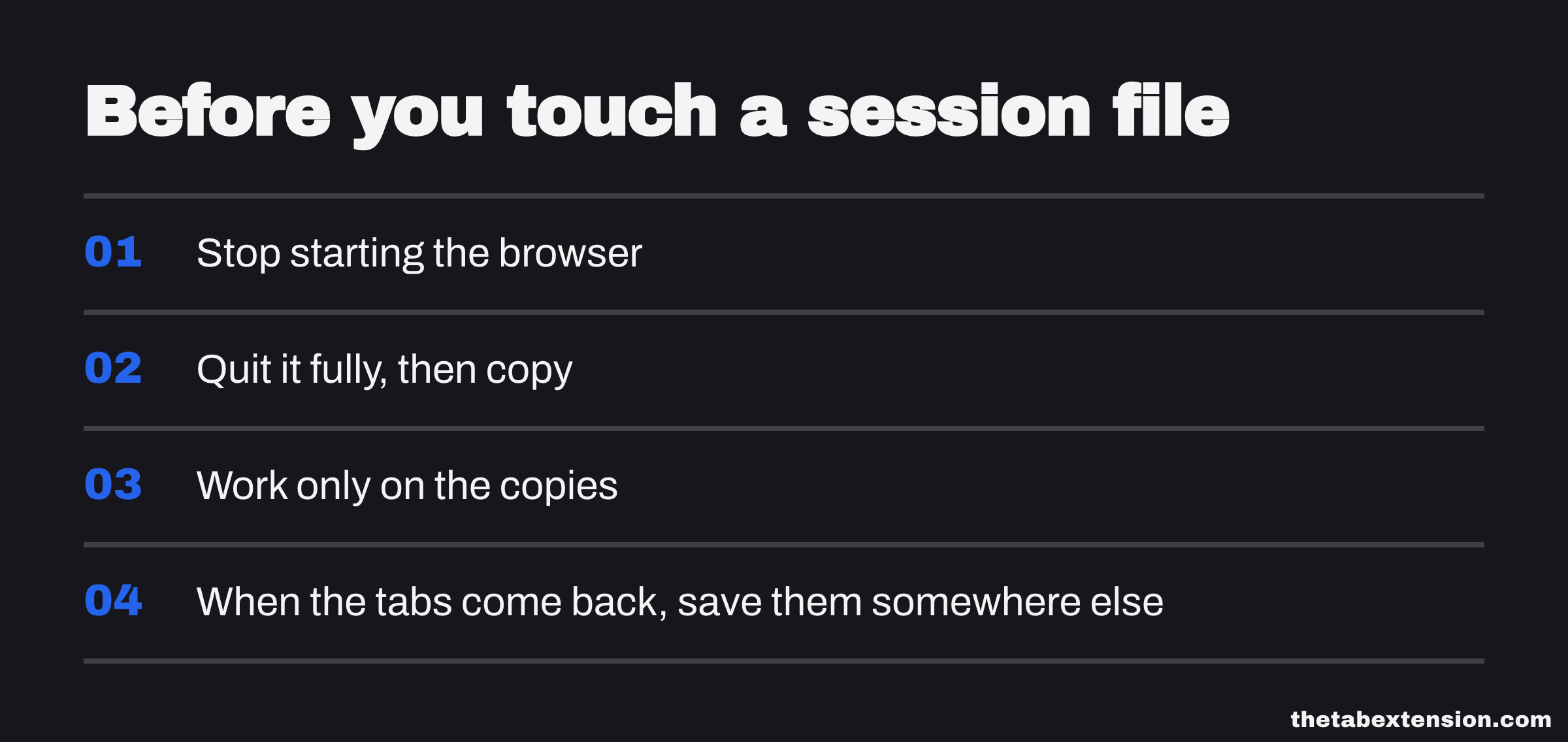
Stop starting the browser. Each launch moves the old session one step closer to deletion, in Chrome and in Firefox.
Quit it fully, then copy. In Chrome, copy the Sessions folder and Sessions_Encrypted if it exists. In Firefox, copy sessionstore.jsonlz4 and the whole sessionstore-backups folder.
Work only on the copies. Read them, rename them, put them back. Keep one set you never touch.
When the tabs come back, save them somewhere else. Anywhere that is not a session file will do. Bookmark the window, export the list, or put them in a tab manager. The file that just rescued you is the next one in line to be rotated out.
Session files exist so the browser can reopen what it had a moment ago. They do that well, and they were never meant to remember further back than a start or two.
SOURCES
Every factual claim in this article traces to a source below. Where we could not source a claim, we removed it rather than softening it.
Class comment: the backend "writes to a file with a suffix that indicates the time the file was opened", it "(mostly) does not interpret the commands in any way, it simply reads/writes them", and "During startup, the most recent file that has the internal command written is used. This ensures restore does not attempt to use a file that did not have the complete state written". Member comment: the previous valid file can be deleted once a new one is written, but "As there is no guarantee the commands have actually been written to disk, we keep one additional file around."
`InitIfNecessary` finds the last session file and then runs "Best effort delete all sessions except the current & last." `DeleteLastSessionFiles` deletes every session file whose path does not match the last session's and is commented "This is called at startup, before a file has been opened for writing." The file signature is `0x53534E53`, commented "SSNS (Sessions)"; version 3 is the cleartext format and version 5 is `kFileVersionEncryptedWithOSCrypt`.
`kSessionsDirectory` is the "Directory under the profile directory to store cleartext session data. Added in Chrome 85." `kEncryptedSessionsDirectory` is the "Directory under the profile directory to store encrypted session data. Added in Chrome 148". The file name prefixes are declared for "a type of TAB", "a type of SESSION" and "a type of APP"; the matching `session_constants.cc` sets the values to `Sessions`, `Sessions_Encrypted`, `Tabs`, `Session`, `Apps` and the separator `_`.
Describes the stages "of transitioning from cleartext storage of session data to encrypted storage". `kWriteBothReadOnlyClear`: "Write both cleartext and encrypted versions of the session storage, but only read from the cleartext version." `kWriteEncryptedReadPreferEncrypted`: "Write only the encrypted version of the session storage ... Older files are deleted". The matching `command_storage_features.cc` declares `kEncryptSessionStorage` as `FEATURE_ENABLED_BY_DEFAULT` with the default stage `write_both_read_only_clear`.
"Navigate to `chrome://version`" and "Look for the `Profile Path` field. This gives the path to the profile directory." Default user data directories: `%LOCALAPPDATA%\Google\Chrome\User Data` on Windows, `~/Library/Application Support/Google/Chrome` on macOS, `~/.config/google-chrome` on Linux, with each profile "a subdirectory (often `Default`)".
Declares the session file paths with a comment on each. `sessionstore.jsonlz4`: "the latest version of sessionstore written during a clean shutdown. After startup, it is renamed `cleanBackup`." `sessionstore-backups/previous.jsonlz4`: "the previous version of `clean`. Updated whenever we successfully load from `clean`." `recovery.jsonlz4`: "written during runtime ... removed during clean shutdown. This file is designed to protect against crashes / sudden shutdown." `recovery.baklz4`: "the previous version of the sessionstore written during runtime (e.g. 15 seconds before recovery)". `upgrade.jsonlz4-`: "a backup created during an upgrade of Firefox." `loadOrder` is `clean`, `recovery`, `recoveryBackup`, `cleanBackup`, then `upgradeBackup`.
On the first write after starting from the clean file, moves `sessionstore.jsonlz4` to the `cleanBackup` path. On the final write of a clean shutdown, removes `recovery.jsonlz4` and `recovery.baklz4`. Removes the oldest upgrade backups once there are more than `maxUpgradeBackups`.
Default preferences: `browser.sessionstore.upgradeBackup.maxUpgradeBackups` 3 and `browser.sessionstore.encryption.enabled` false.
Mozilla's own steps: check `about:sessionrestore` first; open the profile folder from `about:support`; "Make a copy of the sessionstore-backups folder"; shut down Firefox; "Move the file called sessionstore.jsonlz4 to another location"; copy the chosen backup into the main profile folder and "Rename the file to sessionstore.jsonlz4". Also: "This file does not exist while Firefox is running", "you can ignore their names, any file in this folder should be restorable", and "If the most recently modified file is particularly small compared to others, it may be mostly blank". Closes by recommending the Tab Session Manager extension.
Under "Stored session" lists one file, `sessionstore.jsonlz4`: "This file stores the currently open tabs and windows." The list does not mention the `sessionstore-backups` folder. Also gives the route to the profile folder through Help, More Troubleshooting Information, Profile Folder.
Describes History > Restore Previous Session and the "Open previous windows and tabs" startup setting, and lists private windows as not restored "by design".
Lists "Continue where you left off" as one of the startup choices that control what appears when you launch Chrome.