
An extension update goes wrong, a browser flags the extension and disables it, or you just uninstall the thing to try something else. When you reinstall, the saved-tabs list that took months to build is gone. That matches exactly how the platform is documented to behave. "Runs entirely locally" sounds like "safe." What it actually means is "tied to one install."
Does uninstalling a browser extension delete its saved data?
Yes, for the storage area almost every tab manager uses by default. Chrome's own documentation for chrome.storage.local states plainly: "Data is stored locally and cleared when the extension is removed." [1] Firefox's equivalent page says the same thing in almost the same words: "When the extension is uninstalled, its associated local storage is cleared." [2] Neither browser treats this as an edge case worth a warning dialog. It is the documented, intended behaviour of the storage area that "100% local, no cloud sync" tools are built on.
What's the difference between storage.local, storage.sync, and storage.session?
An extension has three built-in places to put data, and they survive different things.
| Storage area | Survives a browser restart | Survives an uninstall | Capacity |
|---|---|---|---|
storage.local | Yes | No - cleared on removal | 10 MB (5 MB before Chrome 113), more with the unlimitedStorage permission |
storage.sync | Yes | Yes, if signed in on reinstall | About 100 KB total, 8 KB per item |
storage.session | No | No | In-memory only, gone on browser restart |
storage.sync is the interesting row, because it is easy to miss why it behaves differently. It is not a backup feature bolted onto the extension; it is a separate storage area, keyed to the signed-in browser account rather than to the local install, and Chrome's documentation confirms the mechanism directly: "If the user enables syncing, the data syncs with every Chrome browser that the user is logged into." [1] Uninstall the extension, sign into the same account somewhere else, reinstall it, and storage.sync is still there, because it was never tied to the install that got removed. The catch is the 8 KB-per-item, 100 KB-total ceiling - enough for recent activity and settings, nowhere near enough for a five-hundred-tab archive.
storage.session is the one built for the opposite job. It never touches disk at all, which is exactly the point for anything sensitive, and it disappears on its own the moment the browser restarts.

Does Firefox handle extension storage any differently?
In one respect, yes, and it runs the other way from what you'd expect. Firefox's own documentation states that without the unlimitedStorage permission, an extension's local storage "is subjected to the same storage limits as applied to IndexedDB databases" - the same quota system regular websites use for their own on-page storage. That inheritance has a real consequence: Firefox's docs go on to say that even with unlimitedStorage, an extension "may get a quota exceeded error when the disk space used by storage exceeds the global limit." [2] Chrome's own storage documentation describes no equivalent disk-pressure failure mode for storage.local - only the uninstall wipe.
This tracks with how the two browsers treat ordinary website storage generally. MDN's storage quotas page splits web-page storage into two kinds: best-effort, which "persists as long as the origin is below its quota, the device has enough storage space, and the user doesn't choose to delete the data," and persistent, which is "only evicted... if the user chooses to." [3] Under storage pressure, a browser clears best-effort data with a Least Recently Used policy - it deletes the data belonging to whichever origin was touched longest ago, and keeps going down the list until there is enough room. Chrome, Edge and Safari decide whether to grant persistent storage silently, using "the user's history of interaction with the site," and never show a prompt. Firefox is the one that asks, with a visible permission popup. [3] Extension storage is a separate system from this website-storage mechanism in Chrome, but in Firefox the two paths cross, which is why a Firefox-only quota failure exists that Chrome's own docs never mention.
None of this changes the uninstall rule. It only means that on Firefox, a large saved-tabs archive can theoretically hit a wall before you ever touch the uninstall button.
What happened when TheTab lost a user's saved tabs
On 2026-07-15 a Brave user reported that every saved tab had vanished after Brave disabled the extension and they reinstalled it. The cause was not a corrupted file or a sync failure. It was a design mistake: every automatic safety net we shipped - the saved groups themselves, the chunked auto-backup, the crash snapshot - lived in chrome.storage.local. The backup was stored in exactly the same place as the thing it was backing up, so the uninstall that wiped one wiped the other at the same time. An auto-backup that dies with the data it protects was never a backup. It was the same risk, told to you twice.
An earlier change had made this worse without anyone deciding to accept the trade-off: saved groups had been migrated off chrome.storage.sync and onto storage.local, which removed the one storage area that would have survived the reinstall on its own.
The fix shipped in three layers, each one landing in a different storage location on purpose:
- A default-on mirror of recent groups into
chrome.storage.sync, which survives an uninstall because it lives on the account, not the install - budgeted to the 100 KB quota, so it holds recent activity rather than the whole archive. - A bookmarks-folder mirror, because browser bookmarks are a storage area of their own that an extension uninstall does not touch at all.
- An opt-in scheduled export to a JSON file in Downloads, which is the only one of the three that leaves the browser entirely.
None of the three is a complete answer by itself, and the 100 KB sync quota is a real ceiling we still live with. But between them, at least one now survives every failure mode that used to take everything: an uninstall, a disabled-extension lockout, a wiped profile.
Where do other tab managers actually keep your data?
Every tool in this category makes the same underlying choice TheTab used to make by accident: everything in storage.local, nothing anywhere else. Some disclose it, some just don't offer an alternative.
OneTab stores its list purely locally. Its own help page labels cross-device sync as "Coming soon," [4] which is the same status it has carried for a long time - so today, an OneTab archive lives and dies with one browser profile, full stop. See OneTab vs Simple Tab Groups for how that compares to a tool built around hiding tabs instead of closing them, and the fuller list of alternatives for tools that do offer a way out.
Session Buddy keeps everything local too, with no export path off the platform beyond what its own console offers; cloud sync is, in its own words, its "most-requested feature," not a shipped one. Tab Session Manager is the exception on this list: its privacy policy states session data "is stored only on local storage and never sent to an external server" unless the user turns on optional cloud sync, at which point sessions are written to the user's own Google Drive App Folder [5] - a design that survives an uninstall for the same structural reason TheTab's sync mirror does, by keeping a copy somewhere the uninstall cannot reach. Session Buddy vs Tab Session Manager goes through both in full.
This is what "the data never leaves your device" means by default on every platform in this category, ours included until 2026-07-15, not a defect specific to any one tool - and worth knowing before the day you actually need the archive back.
How do you make sure your saved tabs survive an uninstall?
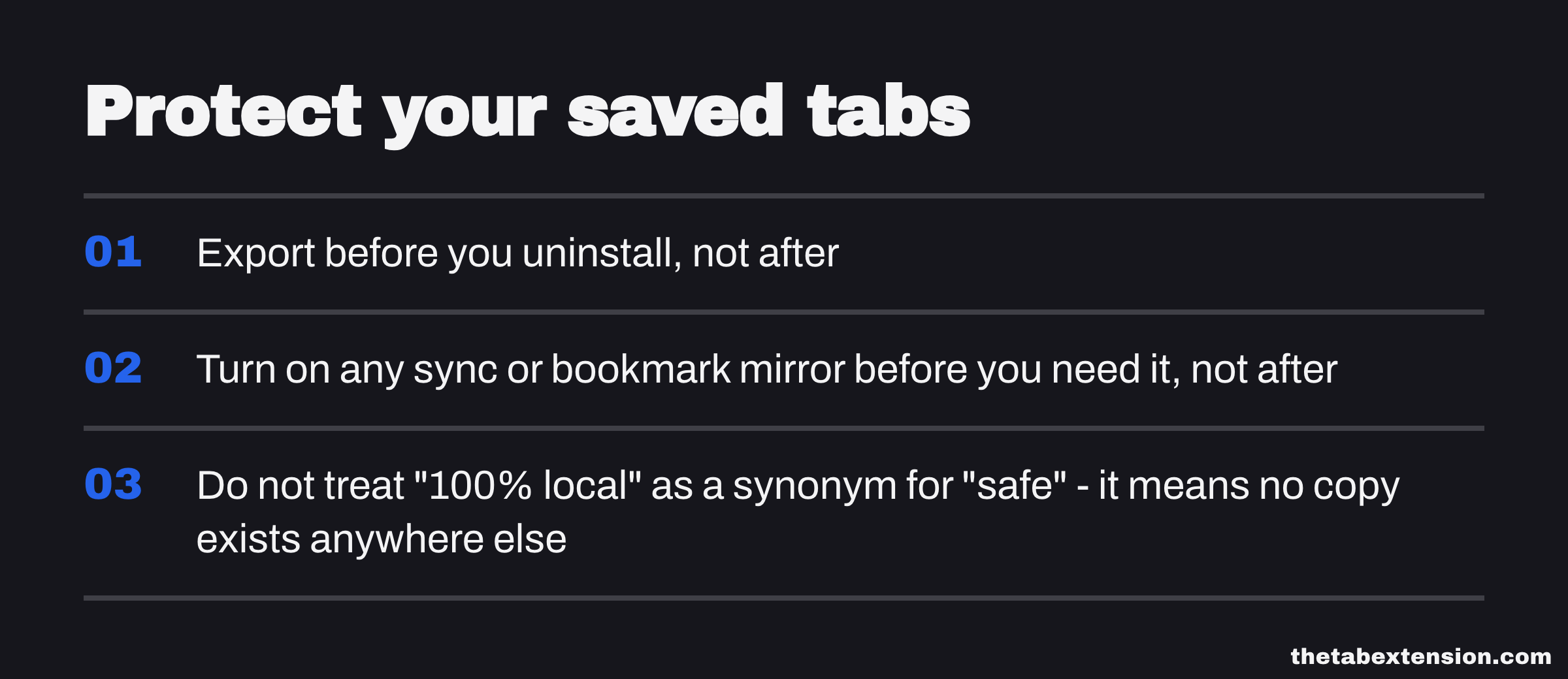
Export before you uninstall, not after. Every tool worth using here ships a manual export in some format - do it the moment you decide to switch tools or troubleshoot a problem, not in the panic afterward.
Check whether the tool mirrors anything outside storage.local, and turn it on if it's optional. A sync mirror or a bookmarks mirror only protects you if it is switched on before the day you need it, and a default-off safety net protects nobody.
Do not treat "100% local" as a synonym for "safe." It means the opposite of what it sounds like for durability: no cloud copy also means no copy anywhere else. A tool built around the four kinds of tab manager trades convenience for control on this exact axis, and it is worth knowing which side of that trade you are actually on before you have five hundred tabs riding on it.
If you are choosing a permission model as carefully as a storage model, Chrome Extension Permissions: What the Prompt Leaves Out covers the other half of what "local-only" is supposed to buy you.
SOURCES
Every factual claim in this article traces to a source below. Where we could not source a claim, we removed it rather than softening it.
States for the Local storage area: "Data is stored locally and cleared when the extension is removed. The storage limit is 10 MB (5 MB in Chrome 113 and earlier), but can be increased by requesting the 'unlimitedStorage' permission." For Sync: "If the user enables syncing, the data syncs with every Chrome browser that the user is logged into. If disabled, it behaves like storage.local... The quota limitation is approximately 100 KB, 8 KB per item." For Session: "Items in the session storage area are stored in-memory and will not be persisted to disk."
States: "When the extension is uninstalled, its associated local storage is cleared." Also states that without the unlimitedStorage permission, Firefox extension storage "is subjected to the same storage limits as applied to IndexedDB databases," and that even with the permission, extensions "may get a quota exceeded error when the disk space used by storage exceeds the global limit."
Defines best-effort storage ("persists as long as the origin is below its quota, the device has enough storage space, and the user doesn't choose to delete the data") versus persistent storage (only evicted "if the user chooses to"). States browsers use a "Least Recently Used (LRU) policy" to delete the least-recently-used origin's data under storage pressure, and that this "only applies to origins that are not persistent." States Firefox shows a permission popup for persistent storage requests, while "Safari and most Chromium-based browsers, such as Chrome or Edge, automatically approve or deny the request... and do not show any prompts."
OneTab's own help page labels syncing OneTab data across profiles and computers as "Coming soon," confirming it ships no cross-device sync today.
States that session data "is stored only on local storage and never sent to an external server" unless the user turns on cloud sync, in which case session data is written to the user's own Google Drive App Folder.