GETTING STARTED
Install TheTab and save your first tabs in a few minutes. Every step is on this page, nothing else to read.
- 1
- 2
FOLLOW THE SETUP PAGE
A short setup page opens by itself right after the install. It has four quick steps and you can skip any of them. The last one saves your open tabs once so you can see how it works.
- 3
PIN THE ICON
Click the puzzle-piece icon at the top right of your browser, find TheTab in the list and click the pin next to it. The TheTab icon now stays next to the address bar, one click away.
- 4
SAVE YOUR TABS
Click the TheTab icon, or press Ctrl+Shift+1 (Cmd+Shift+1 on Mac). Your open tabs are saved into one dated group and closed, which frees the memory they were using.
- 5
GET THEM BACK
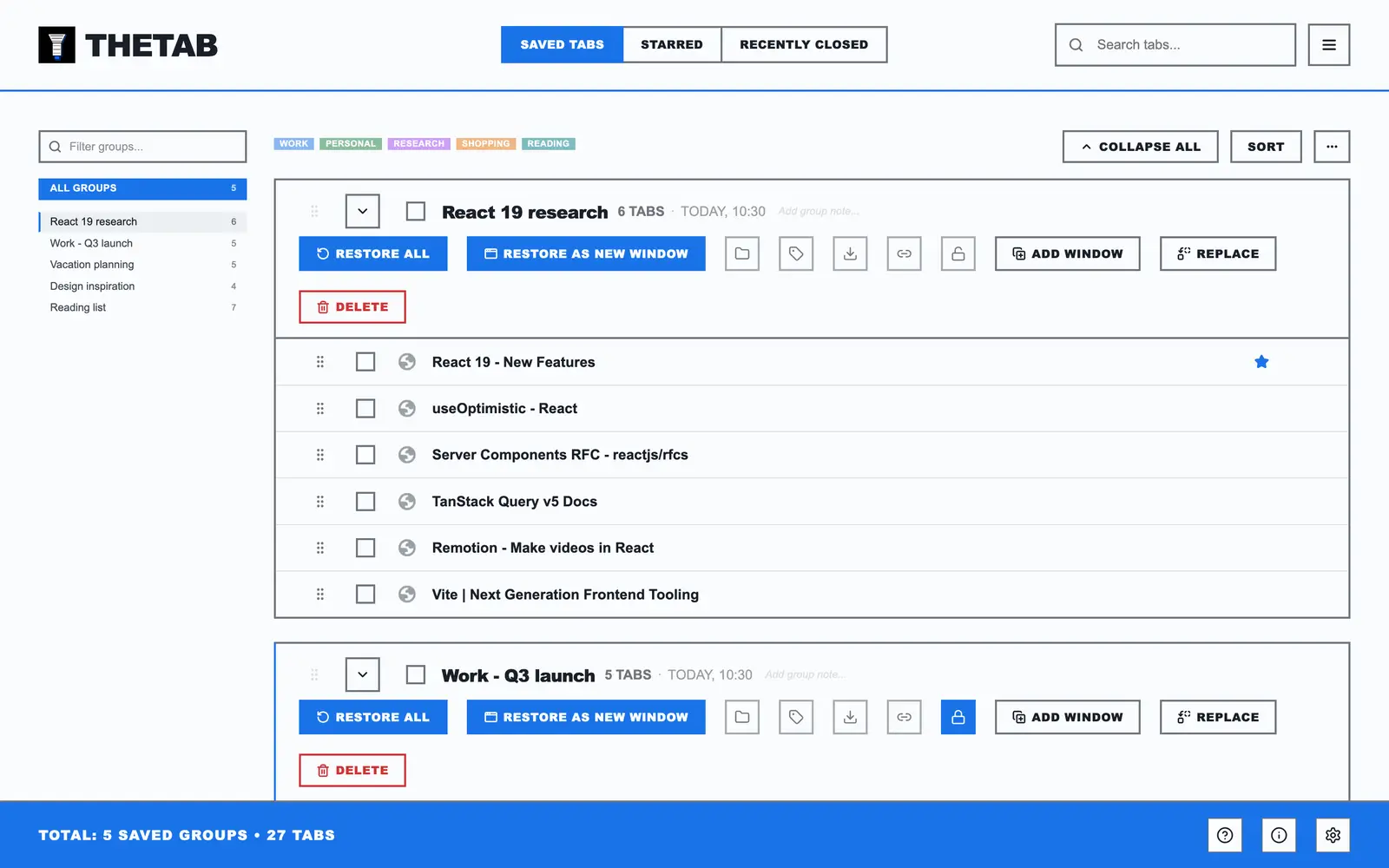
Your groups are on the saved tabs page. Click a single tab to open just that one, or press RESTORE ALL to bring the whole group back.
- 6
FIND A TAB
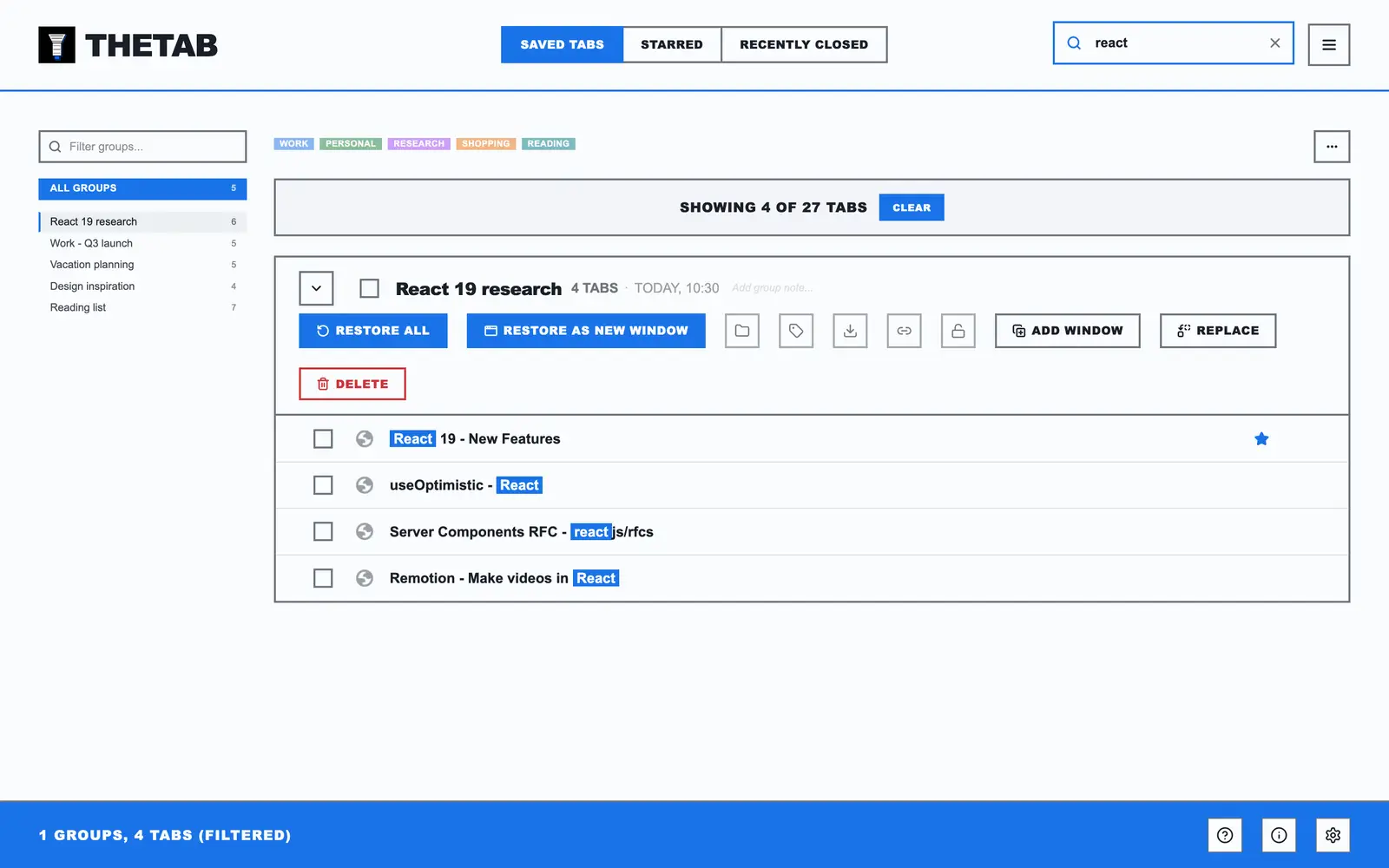
Type in the search box at the top of the saved tabs page. It looks through the titles and addresses of every tab you saved, and shows only the matches.
- 7
OPEN THE SIDE PANEL
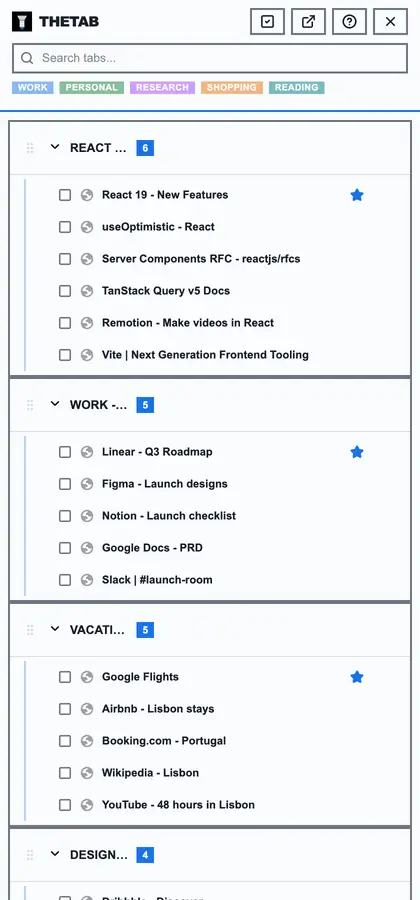
Press Ctrl+Shift+2 (Cmd+Shift+2 on Mac) to browse your saved groups next to the page you are on, without leaving it.
- 8
RIGHT-CLICK TO SAVE LESS
Right-click any page to save only this tab, the tabs to the left or right of it, and more. 7 save options in total.
STILL STUCK?
Tell us which step does not look like what you see and we will answer with a screenshot of exactly that step. The full list of questions is in the help center, or write to support@thetabextension.com.