
Developers are the worst tab hoarders on the internet, and the work itself is why. A single debugging session can open fifteen tabs before you notice it happening. A new feature can mean twenty. Learning an unfamiliar framework, thirty.
So the count is not the bug. The bug is that nothing in the browser distinguishes the four tabs you are actively using from the thirty-six that belong to a task you finished yesterday. They render identically, at the same width, in the same strip.
Why do developers open so many more tabs than everyone else?
A developer's browser is doing four jobs at once: reference library, test client, code review surface, and communication tool. Each job opens tabs at a different rate and none of them close on their own. The model this article works from is that one properly scoped task needs somewhere around a dozen tabs, and that two or three tasks are usually open at once. On that arithmetic the count is a symptom of parallelism, not sloppiness.
Here is what a frontend developer might have open for a single ticket:
- Framework documentation. The router docs, plus the component API reference, plus the one page that explains the thing the docs assume you already know.
- Language reference. The TypeScript handbook and whichever utility-types page you can never remember the shape of.
- Problem-solving. Three Stack Overflow tabs for the exact error string, two of which turn out to be about a different major version.
- Context. The GitHub issue, the pull request, the design spec.
- Tools. Local dev server, CI dashboard, staging environment.
Count them and that is fourteen tabs for one ticket. None of them are frivolous, and every one of them cost effort to find.
What does the tab count actually look like hour by hour?
Tab accumulation is not gradual drift. It happens in bursts, each one triggered by a legitimate need, and the count roughly doubles every time a second task arrives before the first one is finished. Here is how a morning goes, step by step.
9:00 AM. You start on a bug in the API layer. You open the GitHub issue (1), the relevant source file on GitHub (2), and the API documentation for the endpoint you are debugging (3).
9:15 AM. The bug turns out to be a TypeScript type mismatch. You open the handbook page for utility types (4) and a Stack Overflow answer about conditional types (5).
9:30 AM. You need to test the fix. Local dev server (6), API testing client (7), deployment dashboard to check staging (8).
9:45 AM. A teammate asks for a code review. Their pull request (9), the files-changed view (10), the design doc it references (11).
10:00 AM. You switch back to the bug and cannot find the TypeScript tab, because it is now buried behind three code review tabs that look exactly like it. You open it again (12).
Tab twelve is a duplicate of tab four, opened because finding tab four was more expensive than re-searching for it. By lunch you are at twenty-five. By the end of the day, forty. Every one of them was opened for a reason, and a meaningful fraction of them are duplicates of each other.

How does tab overload affect the code you write?
Tab chaos is not a tidiness complaint. It degrades code quality through three specific mechanisms, and the memory cost that everyone talks about is the least important of them.
Reference loss is the expensive one. You found the perfect answer explaining the exact pattern you needed. Twenty minutes later the tab is gone into the pile, so you search again, land on a different answer, and implement a slightly different solution. The code compiles and the tests pass. It is just not the design you had already decided was better. This failure is invisible in review, because nobody sees the version you would have written.
Context fragmentation is the constant tax. When the strip holds three tasks at once, every scan for the right doc tab makes you briefly think about the other two tasks, and complex debugging is exactly the activity that cannot survive that.
Memory pressure is real but overstated. Under Memory Saver, Chrome discards tabs that have sat unused in the background and reloads them automatically when you return, per Chrome's developer blog, December 2022. So the modern failure mode is not usually an out-of-memory crash. It is that a machine also running an editor, Docker, a Node dev server and a type checker has less headroom than it should, and the thing that gets slower is your feedback loop.
What is the three-tab rule?
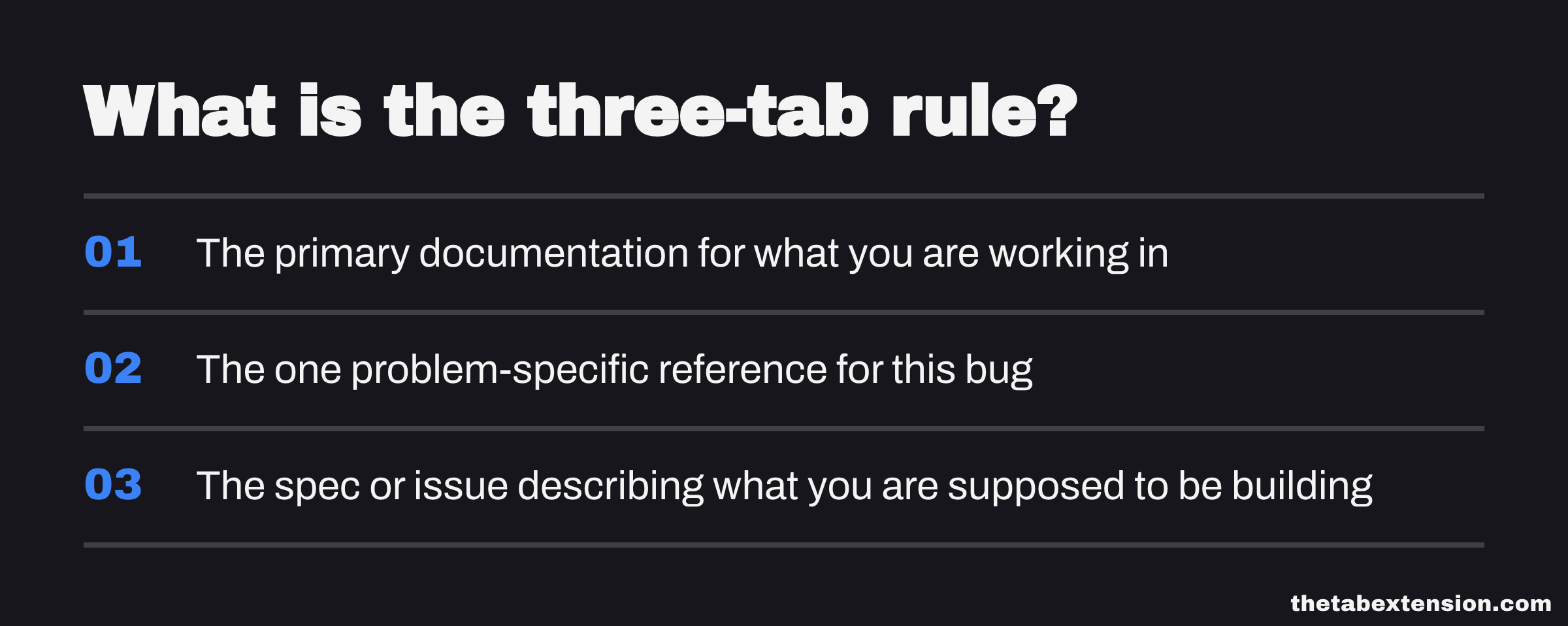
The three-tab rule is a ceiling you set before a coding session starts: at most three reference categories open at once. Not three per category. Three total. The categories are the primary documentation for what you are working in, the one problem-specific reference for this bug, and the spec or issue describing what you are supposed to be building.
Five is fine when a task honestly needs five. The ceiling is not a purity test. What the ceiling does is force the decision at open time rather than at scan time. A tab you decided not to open costs nothing to find later, and a tab you opened "just in case" costs you every time you scan the strip.
The rule also has a second-order effect that is easy to miss. A three-tab strip is short enough to read at a glance, which means you stop using search-in-the-tab-bar as your navigation method, which means you stop re-opening a documentation page you already have open somewhere in the strip.
How do you switch tasks without losing the tabs you already found?
Save the current set before you switch, then close it. This is the single habit that changes the shape of the day, because it converts an impossible choice into a cheap one. Without it, an incoming interruption gives you two bad options: keep everything open and grow the pile, or close it and lose thirty minutes of finding.
Concretely. You are debugging the auth token refresh flow. Four tabs, all earned: the JWT spec, the middleware source on GitHub, a Stack Overflow thread on refresh patterns, the issue. Then production starts throwing 500s on checkout and you have to move now.
Without saving, you open five tabs for the incident on top of the four you had. Now nine tabs and two tasks are interleaved, and when the incident closes you spend five minutes working out which tab belonged to which problem.
With saving, you hit the save shortcut, which in TheTab is Ctrl+Shift+1, or Cmd+Shift+1 on a Mac. The four auth tabs land in a saved group named after the task. The window is empty. You work the incident in a clean window, save that too when it resolves, restore the auth session, and you are back in the middle of the thought rather than at the beginning of it.
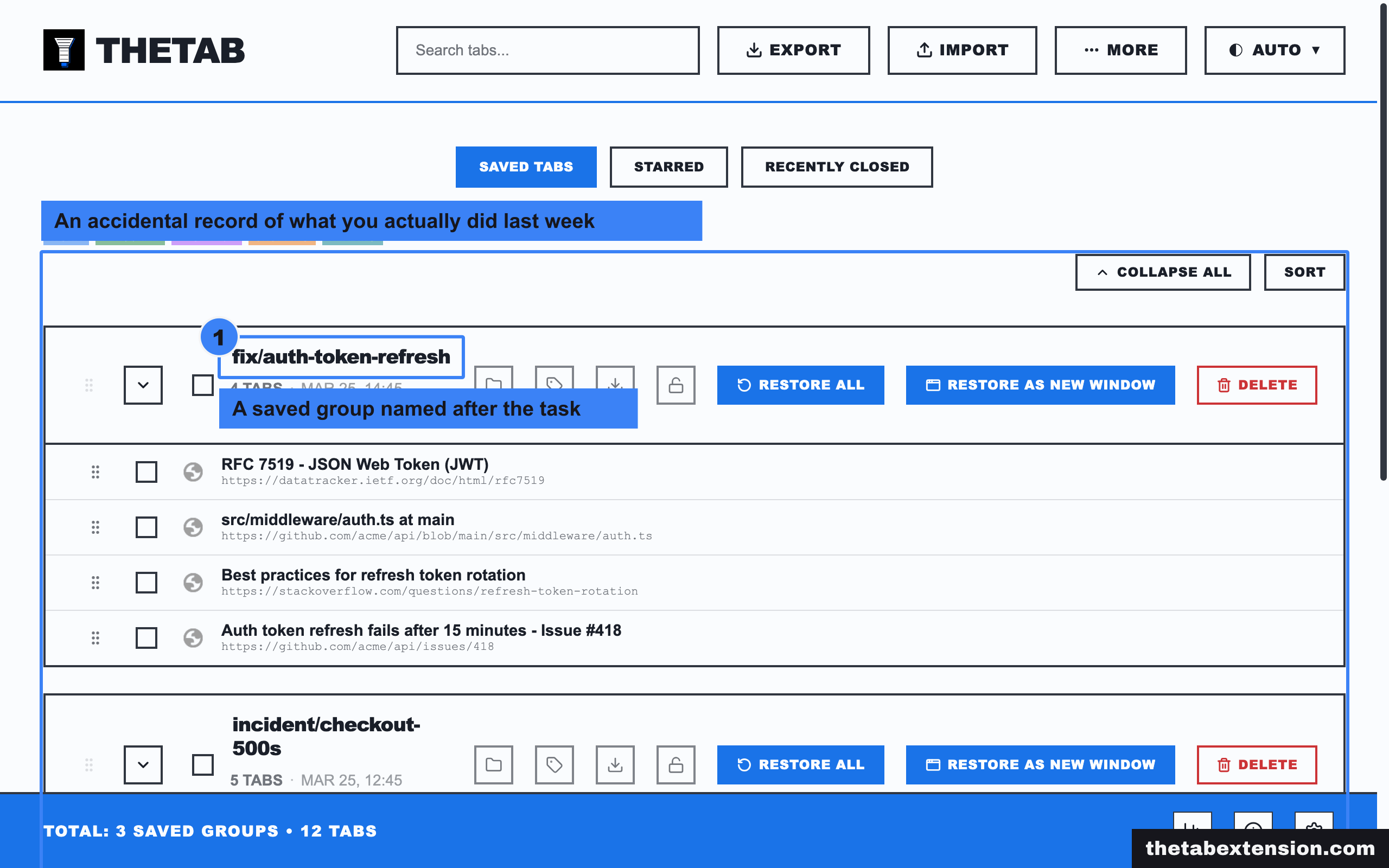
Think of it as branching. You would not develop three features on one branch with uncommitted changes from all three, and the reason is the same reason: separating contexts is cheaper than untangling them later. The naming convention transfers too. fix/auth-token-refresh is a better session name than "work stuff", and once you have a dozen saved sessions you will care about that.
Two smaller things that fall out of this. Your saved session list becomes an accidental record of what you actually did last week, which is more accurate than your memory at standup. And an exported session is a useful artifact to hand a teammate: instead of "check the docs", you can send the exact eight pages needed to debug that subsystem.
TheTab is our own extension, so read that paragraph as a description of what we built rather than a neutral survey. The workflow itself does not depend on us: any tool that saves a window in one keystroke and restores it intact will do, and if you want the whole field instead of our version of it, the four categories of tab manager covers what exists.
Should developers use a separate browser profile?
Yes, and the reason is friction. Tidiness has nothing to do with it. Chrome, Firefox and Edge all support multiple profiles, and each vendor draws the boundary slightly differently. Chrome's help page says a profile keeps "bookmarks, history, passwords, and other settings" separate. Microsoft says an Edge profile carries "separate settings, bookmarks, extensions, themes, and preferences". Mozilla shipped a built-in Firefox profile manager on 7 October 2025, giving each profile "its own bookmarks, logins, history, extensions and themes". A development profile holds React DevTools, a JSON viewer, a tab manager, your GitHub and CI logins, and bookmarks organised by stack. A separate communication profile holds Slack, email and calendar.
The friction is the point. When your development profile has no path to Twitter, the impulse to check it dies immediately because acting on it requires switching profiles. That delay is enough to break the impulse loop.
Resisting the impulse is not the job here. You are making the impulse expensive enough that it expires before you act on it. A blocklist extension you can disable in one click does not do this. A separate profile does, because the cost is not a dialogue you can argue with, it is a window switch and a reload.
What stays open all day? A personal baseline
The three-tab ceiling and the save-before-switch habit are both about per-task tabs. There is a second population in every developer's strip that no ceiling should apply to, and it is worth separating deliberately. Here is how the developer writing this runs their own browser.
Pinned: the tabs used constantly, all day. An AI chat, Google Translate, the music player, the calendar. Pinning shrinks the tab to an icon and parks it at the left edge where your hand already knows it is. In TheTab a save-and-clear leaves pinned tabs open, because the Include pinned tabs option is off by default. That is a default and not a guarantee: switch it on in Options and pinned tabs get saved and closed with everything else. These are not tasks, so they should not look like tasks.
Grouped and collapsed: the once-a-day tabs. Mail, the infra consoles, the watch list, the stats dashboards, and one group per project currently in flight. Collapsing a Chrome group leaves "only the group's name or colored circle" in the strip, so a dozen pages you check once a day cost one slot instead of twelve. Opened once in the morning, collapsed after, done.
What is left in the open strip after those two moves is only the working set - the tabs belonging to whatever you are doing right now. The counts stop lying, too: forty open tabs was never forty pieces of work in progress, it was four pieces of work buried under the permanent and the once-a-day layers. Separate the layers and the number you see is the number that matters.
Where should reference material actually live?
In bookmarks, organised by technology, the same way you organise code by domain. The reason tabs sprawl is that searching is the default retrieval method, and a search opens five results to find one. A bookmark opens one. Most reference material you keep open is material you already found, which means keeping it open is paying the storage cost to avoid a lookup you would not have had to do anyway.
Organise the folders by stack, not by project: a React folder with the hooks reference and the patterns guide, a TypeScript folder with the handbook and the strict-mode notes, one folder per thing you actually work in. The rule to enforce is that when you find the definitive resource for a topic, you bookmark it and stop looking for a better one. One thorough guide beats five partial ones you are cross-referencing, and the cross-referencing is what generates the tabs.
There are three ways back to a page, and they are good at different things:
| Route back | Tabs it opens | When it is the right route |
|---|---|---|
| Search again | Four or five, of which you keep one | You have never found the page before |
| Bookmark folder | One | You know the page and will want it again in a month |
| Saved session | The whole set at once | You will need all of these together again, as a group |
The mistake is using search for row two and tabs for row three. That combination is exactly how a browser gets to forty tabs by Thursday.
Does any of this survive a bad week?
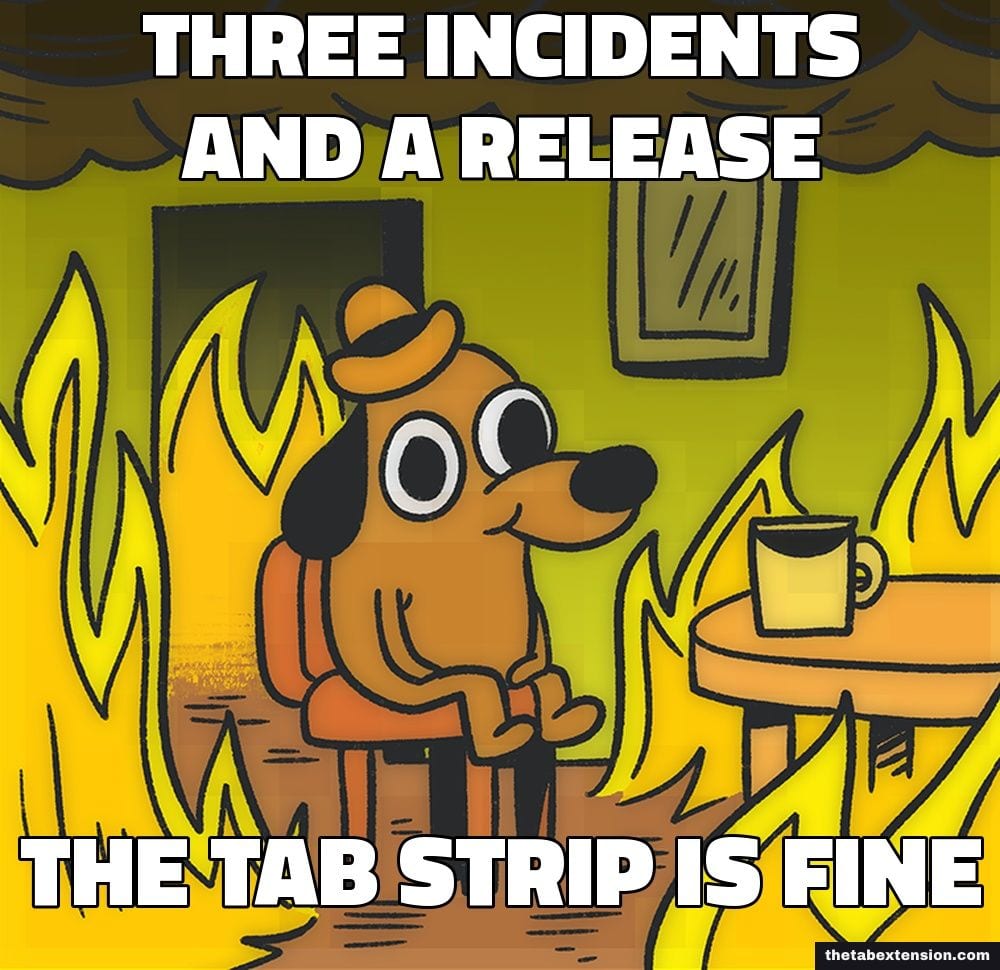
Not intact, no. Some weeks are three incidents and a release, and by Friday the strip is forty tabs deep regardless of what you decided on Monday. Anyone selling you a tab system that never degrades is selling you a fantasy about your job.
The system's job is to be cheap to restart. That is why the recovery move is a clean sweep and not a careful triage: save the whole mess as one dated group and close everything, then open whatever the next task needs. You lose nothing, because the pile is archived rather than deleted, and you get back a readable tab strip. If a full reset sounds drastic, tab bankruptcy makes the case for it properly, and there are several organisation systems worth testing if the per-task boundary is not the shape that fits your work.
What does not work is deciding to be better at tabs. The ceiling, the save-before-switch and the separate profile are all ways of not needing to be.
SOURCES
Every factual claim in this article traces to a source below. Where we could not source a claim, we removed it rather than softening it.
Under Memory Saver, Chrome "will proactively discard tabs that have been unused in the background for some time"; a discarded page is "gone, exactly as if the tab had been closed normally", and "the page will be reloaded automatically" when the user revisits the tab.
A collapsed Chrome tab group shows "only the group's name or colored circle" in the tab strip.
A Chrome profile keeps "bookmarks, history, passwords, and other settings" separate. The page names no other categories.
A Microsoft Edge profile carries "separate settings, bookmarks, extensions, themes, and preferences".
Firefox's built-in profile manager gives each profile "its own bookmarks, logins, history, extensions and themes". The post names no other categories.