
Office workers get desks, monitors, whiteboards and rooms with doors. Remote workers get a browser.
Email, documents, project management, video calls, messaging, research, dashboards, admin tools: all tabs, all in one window, all day. Yet almost nobody sets the browser up on purpose. You install it, add a few extensions, and let the tabs accumulate. It is the equivalent of working at a desk you never organize, where every document you have ever touched is still lying on the surface.
Two disclosures before anything else. This post includes a paid placement from MoreLogin, marked below in its own labeled section. And TheTab, which comes up in the extensions section, is our own extension, so weigh that mention accordingly.
How should you set up browser profiles for remote work?
Create a separate profile for work and one for personal use, then add one per client if you have more than one. Google describes a Chrome profile as keeping your bookmarks, history, passwords and other settings separate; open a second profile and you will find it also carries its own extensions and its own signed-in sessions. Switching profiles switches the whole context at once. It is the highest-leverage change on this list and it takes about five minutes.
The obvious benefit is that personal notifications stop arriving during work hours and work tabs stop being visible in the evening. A profile is also a login boundary. If you consult for three clients, a profile each means you are never signed into the wrong Google Workspace and never have to guess which tenant a link is going to open in. Anyone who has opened a client's shared doc and hit a permission error because the browser used the other client's account already knows why this matters.

Extension separation is worth having for the same reason. Your work profile does not need shopping extensions. Your personal profile does not need the screen recorder your employer requires. An extension can read the pages you visit once it holds host permissions for them, so keeping the work set minimal and the personal set separate reduces what any one of them can see.
Setting it up:
- Chrome: select your profile picture at the top right, then Add Chrome profile, then pick a name, photo and color scheme. Google's profile documentation covers the sync side.
- Firefox: a built-in profile manager shipped with Firefox 144 in October 2025, with named profiles, avatars and color themes. Mozilla's notes describe a gradual global rollout on Windows 11, Mac and Linux, with Windows 10 support coming later, so being on 144 is not a guarantee you have it. If you do not, type
about:profilesinto the address bar. - Edge: open Profile, then Manage profile settings, then Add profile, per Microsoft's documentation.
Give each profile a distinct color and name it after what it is for rather than what it is. "Acme" beats "Work 2". The color is the thing you will navigate by, because you will register it before you read anything.
Paid placement: MoreLogin
This section is a paid placement. MoreLogin paid for it. Nothing else in this article is sponsored.
Browser profiles separate contexts for one person on one machine. Running many accounts on the same platform at once is a different problem, and profiles are not designed for it: every profile on the machine still goes out over the same device and the same network connection.
MoreLogin Cloud Phone is a paid tool aimed at that case, sold to social media, marketing and e-commerce teams. MoreLogin says its anti-detect browser gives each browser profile a unique fingerprint, creates each profile as "a persistent, isolated environment designed for long-term use", and does not expose passwords stored in the browser to team members during use. Cloud Phone is the mobile half: Android instances that MoreLogin describes as running "on cloud-based ARM chips" rather than as local emulators, so a mobile account gets its own device without anyone maintaining physical handsets. Desktop clients run on Windows, macOS and Linux. There is a free tier of two permanent profiles plus 100 minutes of cloud phone time, and Cloud Phone is otherwise billed per minute while powered on or on a monthly plan starting around 25 dollars.
If you are one person keeping a job separate from a personal life, you do not need any of this. Browser profiles are enough and they are free.
What is the three-window system?
The three-window system is a split of your browser across three windows by what the tabs are for: one for the work in front of you, one for reference material, and one for messages. Tabs are one dimension and windows are another. If everything you do runs in a single window, a Slack notification and a spec document compete for the same strip of screen.
Window 1, Active Work. The document, codebase, design file or spreadsheet you are working on right now, plus whatever it directly needs. Three to five tabs. This window gets the screen and the attention. If a tab in here is not part of the current task, it belongs in one of the other two.
Window 2, Reference. Documentation, research, guidelines, dashboards, the data you keep checking. This is the window that would otherwise bloat Window 1. Put it on a second monitor if you have one, or leave it minimized and pull it up when you need to look something up. It is allowed to be messier than Window 1. You search this window; you work in the other one.
Window 3, Communication. Email, Slack, Teams, the project tracker. Minimized during focused work, or parked on a separate virtual desktop. Check it on a schedule you set.
The reason this beats tab groups for the same job is that a window is a boundary you cannot see past, whereas a collapsed group is still sitting in the same strip you are looking at all day. The split is between kinds of attention, not between topics. Active work needs sustained focus, reference needs fast retrieval, communication needs to be interruptible on your terms. Those are three different modes, and giving each one its own window means switching modes is a deliberate act rather than an accident of where your cursor landed.

It also makes interruptions recoverable. When something in Window 3 pulls you away, Window 1 is untouched, in the same arrangement, with the same tab focused. You come back to a workspace rather than to a search for where you were.
If a per-window split is not the shape that fits your work, there are several other tab organization systems worth testing, and the one-window-per-project variant is the closest relative of this one.
Which extensions actually matter?
Keep the count low. Every extension adds memory overhead, and one holding host permissions can read the pages you visit; the marginal extension is rarely worth either cost. Three categories earn their place for remote work.
Tab management. Something that saves the current set of tabs in one action and restores them later. This is what makes the three-window system survive the end of the day: you save each window, close everything, and the arrangement is waiting for you tomorrow. TheTab is ours, as disclosed above, and it does one-click saves with dated groups, search and export. The property that matters is the one-click save; any tool with it will do. The realistic field is compared in our roundup of OneTab alternatives.
Site blocking. More necessary at home than in an office, because at home nobody is walking behind your screen. LeechBlock NG is free, runs on Firefox, Chrome, Edge and the other Chromium browsers, and blocks by time of day: allow the distracting sites at lunch and after hours, block them during defined focus windows.
A password manager. Remote work means reaching company resources from your own network, and reused passwords are the whole attack. Bitwarden's free tier includes unlimited devices and unlimited passwords, so cost is not a reason to skip this. Unique password per tool, two-factor wherever it is offered.
Notably absent: anything that promises to organize your tabs for you. Which window a tab belongs in is a decision about your own attention, and that is not something another program can read off a URL.
How should you organize bookmarks?
Mirror your work, not the web. Five folders cover most remote roles:
- Daily for the handful of things you open every morning: dashboard, calendar, tracker
- Projects with one subfolder per active project. This is the folder that decides whether the whole scheme survives, because a project subfolder outlives its project by months and the list quietly fills with work nobody is doing any more. When a project ends, move its subfolder into an Archive folder the same day. Do not delete it, because you will be asked about that work again and the links are the fastest way back into it
- Tools for admin panels, internal systems, expenses, HR
- Reference for the wiki, the style guide, the API docs, the process pages
- Templates for the formats you copy repeatedly
Put five to eight links on the bookmarks bar and nothing else. Everything past eight stops being scannable and becomes another thing to search, which defeats the point of the bar existing.
Delete bookmarks that have gone stale. A bookmarks folder full of dead internal links is worse than an empty one, because you stop trusting it and go back to searching.
How do you set up a deep work mode?
Make the focused configuration something you open rather than something you assemble.
Keep a folder of the tabs a focus session needs, and open the whole folder in one action. For most people the folder is small: the thing being written or built, one reference, and whatever music you use. Right-click the folder in Chrome or Firefox and the option to open everything inside it is there, so the setup cost after the first time is a single click.
Turn off notifications for the session with your operating system's focus mode, which is one switch covering every app at once. Browser notification permissions are worth auditing once, separately, and revoking for anything that is not a direct message.
The strongest version is a profile with no communication tools in it at all, and it is the one most people find uncomfortable. If Slack is not installed and not bookmarked in that profile, checking it requires switching profiles, and that two-second friction is usually enough to break the impulse before it becomes a twenty-minute detour.
What should you do before a video call?
Save your work session and close the tabs you are not using. Video conferencing is one of the heavier things a browser does, and it competes with everything else you have open for CPU. Freeing that up before a long call is cheap insurance against your own video being the one that stutters.
Saving first is what makes closing painless. One action puts the whole arrangement somewhere retrievable, the call runs on a nearly empty browser, and afterwards one action brings the workspace back exactly as it was. Without the save, you either leave everything open and accept the call quality, or you close things and spend the first stretch afterwards reconstructing what you had.
Pin the calendar tab in your communication window. Hunting for a meeting link while the meeting is already running is a small, entirely avoidable, weekly humiliation.
What does a browser shutdown routine do?
A browser shutdown routine ends the day, which is the thing remote work is worst at.
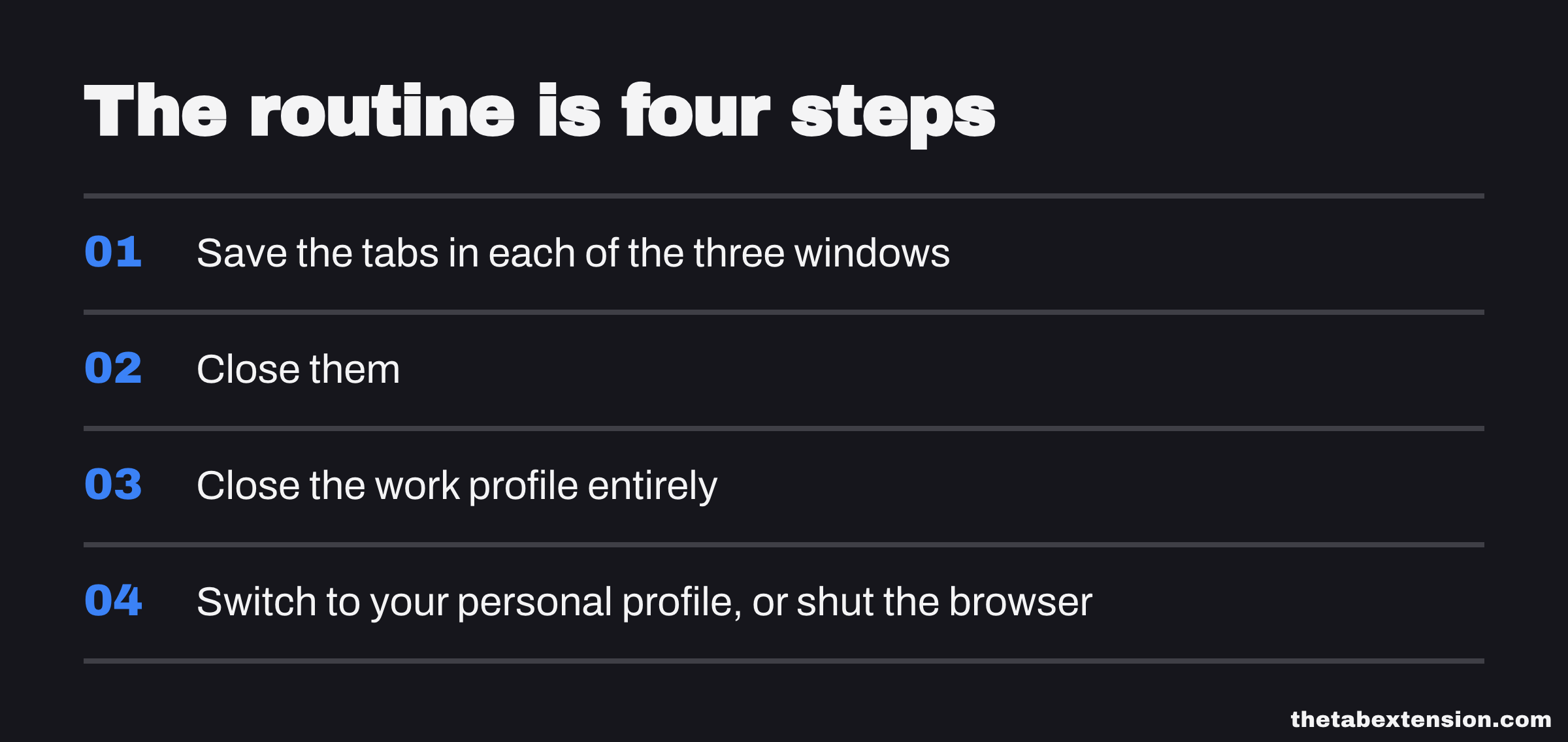
The routine is four steps and takes under a minute: save the tabs in each of the three windows, close them, close the work profile entirely, and either switch to your personal profile or shut the browser. Do it at roughly the same time each day.
The value is the visible boundary: a closed work profile means no stray Slack tab pinging at dinner, and no half-finished document staring back when you open the browser to look something up at nine in the evening.

Commuting used to do this job, and remote work removed it without replacing it. The ritual matters more than the hour it happens at. Whether you stop at five or at seven, the act of saving and closing is the signal, and your brain takes signals more seriously than intentions.
There is a second benefit that shows up the next morning. You open the browser to nothing, and the first tab you open is one this morning's work needs. Nothing survived from Tuesday to sit there taking up strip space. Overnight accumulation is where a lot of tab piles come from, and closing the browser on purpose is the habit we have found does most to stop it. The reason it feels harder than it should is loss aversion, which is covered properly here.
The minimal version
If you do nothing else in this article, do these three.
Create separate work and personal profiles, plus one per client. Five minutes, permanent payoff, and it fixes the wrong-account problem as a side effect.
Split into the three windows. Active work, reference, communication. You can adopt this today without installing anything.
Pick a tab ceiling and save-and-close when you cross it. Ten works, not because ten is correct but because it is easy to count at a glance. There is no research establishing a right number of browser tabs, and anyone quoting one at you made it up. The number's job is to be a threshold you notice yourself crossing, and that is the entire mechanism.
SOURCES
Every factual claim in this article traces to a source below. Where we could not source a claim, we removed it rather than softening it.
The Chrome route to adding a profile through the profile picture at the top right, and that a Chrome profile keeps bookmarks, history, passwords and other settings separate. The page does not name extensions or cookies.
Firefox shipped a built-in profile manager with named profiles, avatars and color themes in version 144, October 2025, described as a gradual global rollout available for Windows 11, Mac and Linux with Windows 10 support coming soon.
The Edge route to adding a profile, through Profile then Manage profile settings then Add profile.
MoreLogin's own description of Cloud Phone in the paid placement section, covering the cloud-based ARM chips claim, desktop clients on Windows, macOS and Linux, the free tier of two permanent profiles plus 100 minutes, and the per-minute or roughly 25 dollar monthly pricing. Date is the read date for that pricing.
MoreLogin's own claims that each browser profile gets a unique fingerprint, that each profile is created as a persistent, isolated environment designed for long-term use, and that passwords stored in the browser are not exposed to team members during use. Date is the read date.
LeechBlock NG is free, runs on Firefox, Chrome, Edge and other Chromium browsers, and blocks by time of day rather than all-or-nothing. Date is the read date.
Bitwarden's free tier includes unlimited devices and unlimited passwords, so cost is not a reason to skip a password manager. Date is the read date for that plan.