
Every tab organization system works for a week. That is the easy part. What separates the ones worth adopting is what they ask of you on the day you are behind on everything, because that is the day a system either holds or quietly stops existing without you noticing you abandoned it.
Seven systems are below, in rough order of how often they get recommended. Three are worth the setup. Two are good for a specific shape of work and bad outside it. Two read well and do not survive a real week.
Which tab organization system should you use?
Pick by the shape of your work, not by what the system promises. If you move between a handful of long-running projects, use one window per project. If your day is a queue of short unrelated tasks, use saved sessions. If most of your tabs are reference material you keep returning to, native tab groups on their own are enough. Everything else in this list is a variation on one of those three, with more bookkeeping attached.
| System | Suits | Running cost | Where it breaks |
|---|---|---|---|
| One window per project | Two to five concurrent projects | Low | Past five windows, nothing is findable |
| Native tab groups | Reference-heavy work | Low | Groups grow and nothing forces a prune |
| Scheduled reset | Chronic accumulators | Medium, needs a habit | Destructive if you skip the save |
| GTD applied to tabs | Existing GTD practitioners | High | Every new tab becomes a decision |
| Kanban columns | Almost nobody | High | Moving tabs by hand is pure overhead |
| Saved sessions | Task-switchers, developers | Low | Useless without search |
| PARA | People already running PARA elsewhere | Medium | Categories multiply |
Does your browser have native tab groups?
Yes, all of them do now. This used to be a Chrome-only answer and has not been one for a while.
- Chrome has had named, color-coded tab groups since 2020, announced on Google's Chrome blog. Google's Chrome help documents collapsing a group so only its name or colored circle shows, says a closed group is not deleted, and says tab groups are saved and synced across devices signed in with the same Google Account, with the Open Tabs setting under Sync as the switch that stops it.
- Firefox shipped native tab groups in Firefox 137, released 1 April 2025, after years of the feature existing only as extensions. Mozilla reported in November 2025 that over 18 million people had used them.
- Safari has had Tab Groups since Safari 15 in 2021, and Apple's guide for that version covers keeping them updated across your devices through iCloud.
- Edge, Brave, Opera and Vivaldi are all built on Chromium, and the ones that differ do so by adding a layer of their own. Edge has Workspaces, which hold a set of related tabs and reopen all of them together. Vivaldi ships its own grouping feature under its own name, Tab Stacks.
- Arc used Spaces, which is closer to a workspace model than a group model. Arc is no longer a live option. The Browser Company wrote in May 2025 that it had stopped actively building new features and would keep shipping Chromium upgrades and security fixes only, and Atlassian announced on 21 October 2025 that its acquisition of the company had closed. It still runs. Do not build a workflow on it.
If you are choosing a browser partly on this basis, the best browsers for tab management goes through them feature by feature, and explains why it publishes no memory numbers.
System 1: One window per project
Give each project its own browser window. Client work in one, the thing you are actually building in another, everything administrative in a third. Switching projects means switching windows, which your operating system already has a shortcut for.
The reason this works is not organization, it is exclusion. A window is a boundary you cannot see past, so the tabs belonging to the other two projects are simply invisible. Every in-window scheme, tab groups included, leaves the other work sitting in your peripheral vision.
It breaks at around five windows. Below that, alt-tabbing to the right one is instant. Above it, you start hunting through window previews, which is the same scanning cost you were trying to escape, moved up one level.
The fix is to keep the count down: windows you are not working in this week should not be open at all. Save the window and close it, then restore it when the project comes back around. That is System 6, and the two combine well.
A fixed three-window version of this, split by kind of work rather than by project, is the setup we use for remote work. Capping it at three is what keeps it under the five-window ceiling permanently.
System 2: Native tab groups, used with a rule
Group tabs by project or by topic, name each group, collapse the ones you are not in. This is the default recommendation everywhere, and it is a reasonable one, but almost every version of the advice skips the part that decides whether it works.
Tab groups have no pressure to shrink. A collapsed group takes about the same strip space as one tab, so a group of forty is visually indistinguishable from a group of four. That is the feature, and it is also how you end up with six groups holding two hundred tabs and no sense that anything is wrong. Collapsing solves the symptom you can see and hides the one you cannot. Chrome does eventually intervene, and the timescale tells you how little help that is: its help page says tabs and tab groups in the Inactive section are automatically closed after 6 months, with synced tab groups closed but not deleted. Six months is long enough for a group to grow past the point where anyone will ever open it again.
So the rule is the system. Pick one and apply it without judgment: a group either stays under a readable number of tabs, or it gets split, or it gets archived whole. Color coding is fine and helps you land on the right group faster, but color is a lookup aid, not a limit.
Native groups are also session-bound in practice. Chrome will restore and sync them for a signed-in profile, but a profile reset, a crash on a browser without the sync path, or a switch to a different machine loses the arrangement you spent weeks building. If the grouping represents real work, it needs to exist somewhere other than the browser's own state. The four categories of tab manager is the fastest way to work out which kind of tool covers that gap for you.
System 3: The scheduled reset
Close everything at fixed points in the day. Morning, after lunch, end of day, or just end of day if two feels like theatre. Reopen only what the next block of work needs, which is usually two to five tabs.
This is the highest-leverage habit on the list and the one most people skip, because it feels wasteful in the moment and it is not. What makes it work is that it is a scheduled event, so you never decide tab by tab whether something has earned its place.
It is only safe if the close is preceded by a save. A reset with nothing behind it is deletion, you will learn that once, and then you will stop doing resets. That is worth stating plainly because the version of this advice that circulates without the save step is the reason people distrust the whole idea. The habit side of this is covered properly in why tab hoarding happens and what actually stops it.
System 4: GTD applied to tabs
Treat the tab strip like a GTD inbox. New tabs are unprocessed, and each one gets clarified into a next action, or into reference, or into something to put on hold, with a regular review to keep the backlog honest. David Allen's method is a real and durable system for tasks.
Tabs are not tasks, though, and the mismatch is what sinks this. GTD earns its overhead because processing an item once removes it from your attention permanently. A tab processed into "reference" is still a tab, still in the strip, still being scanned. You have added a classification step and removed nothing.
If you already run GTD, the honest version is to let the tab be the capture and file the item into the system you already have, then close the tab. That is not tab organization. That is not needing any.
System 5: Kanban columns as tab groups
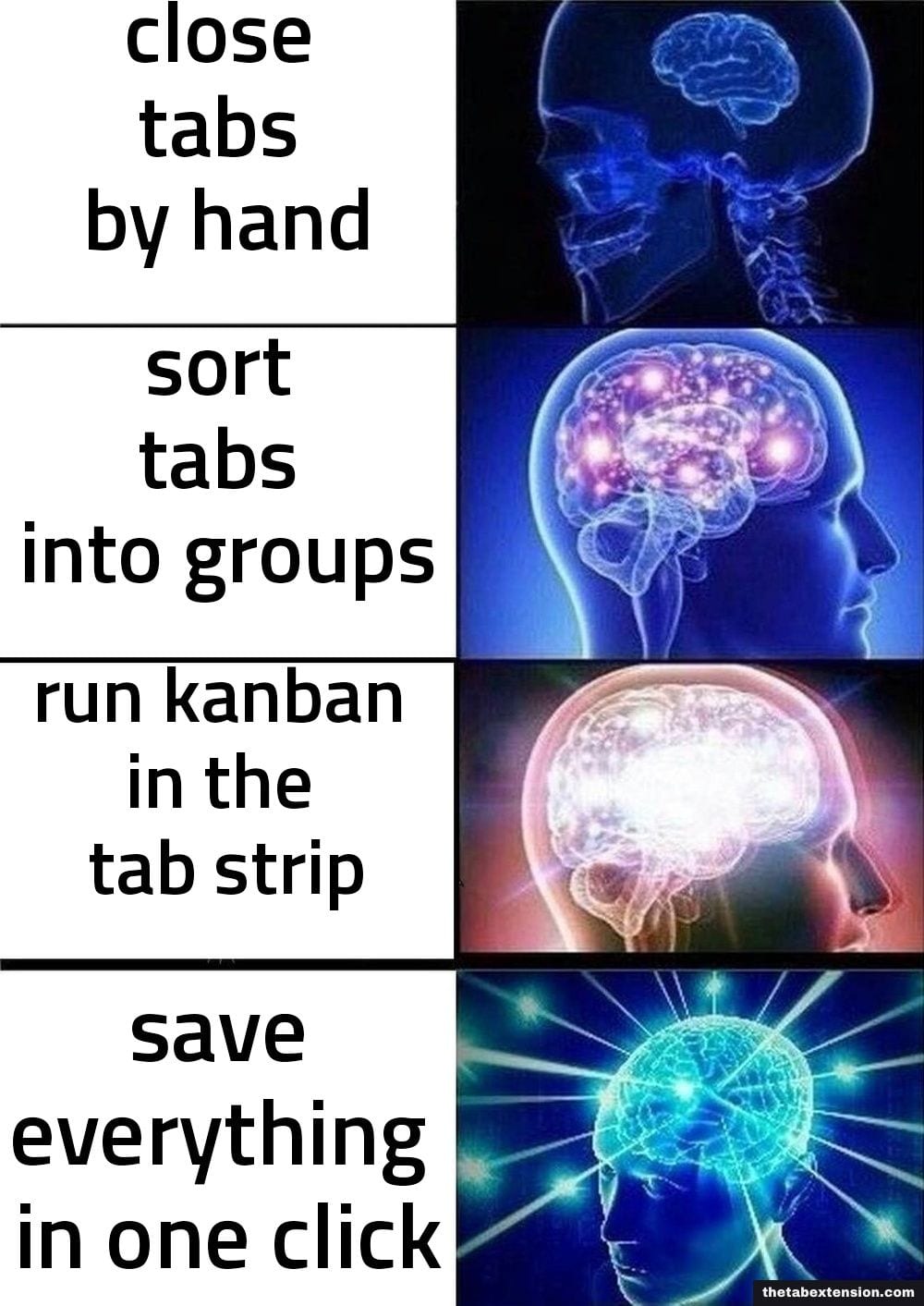
Three groups, Backlog and In Progress and Done, with tabs dragged between them as work advances.
It is a legitimate way to run a team's work and a poor way to run a browser. Every movement is manual, the state it displays is one you already know, and dragging a tab into Done produces a small feeling of progress in exchange for real time. Included here because it gets recommended, not because it should be.
System 6: Saved sessions
Define the work, open only what it needs, and when you switch to something else, save the whole set and close it. Coming back is a restore rather than a reconstruction.
This is the strongest system on the list for anyone whose day arrives as a queue of interruptions. The reason is that it attacks the expensive part directly. Rebuilding context is what costs you: finding the issue again, finding the doc again, finding the specific answer that solved half the problem an hour ago. A session preserves the exact set, so the second visit costs one click instead of ten minutes of re-finding.
There is decent evidence that resumption is where the time goes, even though none of it is about browsers. Gloria Mark, Victor Gonzalez and Justin Harris observed 24 information workers across more than 700 hours and reported in No Task Left Behind? Examining the Nature of Fragmented Work (CHI 2005) that interrupted work resumed the same day took an average of 25 minutes and 26 seconds to get back to. That study is about workplace interruption and not about tabs. The mechanism is what transfers: the cost is in the return trip, not the departure.
Two things determine whether this survives. The save has to be one action, because a save that takes thirty seconds will not happen when a production incident is the reason you are switching. And the archive has to be searchable, because a session list you cannot search turns write-only inside a month and becomes a second pile to feel bad about.
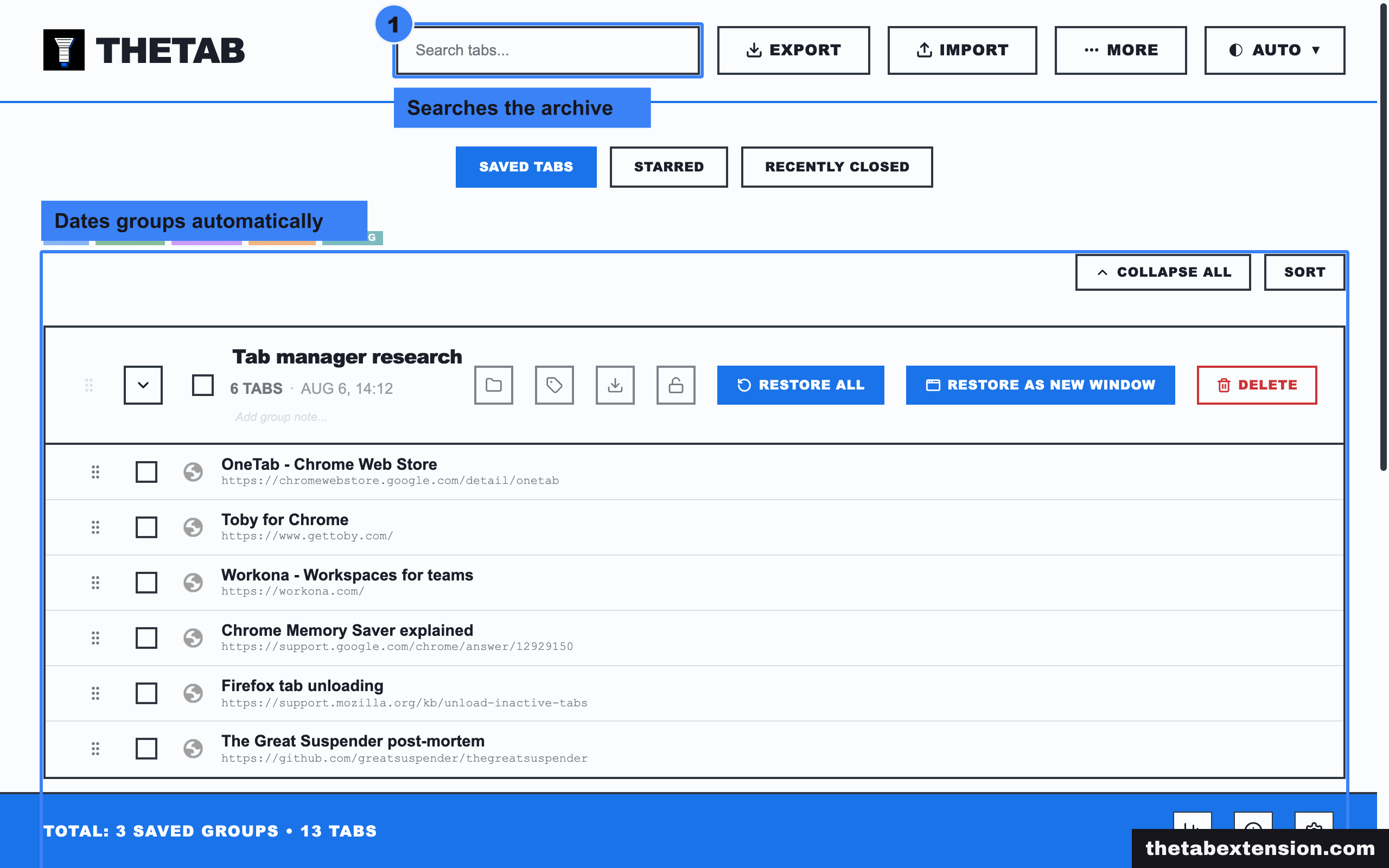
It does one-click saving, dates groups automatically, searches the archive, and exports to HTML or JSON. Those are the properties this system needs, and you should demand all of them from whatever you pick rather than from us specifically. TheTab keeps the archive in local browser storage, with two default-on backups that mirror recent groups into your browser's own sync storage and into a bookmarks folder, both switchable off. That is recovery after a reinstall, not cross-device workflow, and it is a real limitation rather than a roadmap item: if you need the same sessions on a laptop and a phone, an account-based tool is the correct answer and you should use one. The realistic field, OneTab and Session Buddy and Tab Session Manager and Toby and Workona included, is covered in our roundup of OneTab alternatives.
System 7: PARA
PARA is Tiago Forte's system for organizing digital information: Projects for short-term efforts with a goal, Areas for ongoing responsibilities, Resources for topics you are learning about, Archives for anything from the first three that is no longer active. Forte designed it for notes and files across any platform, not specifically for browser tabs, but the split maps onto a tab strip cleanly enough.
In browser terms: Projects get a group or a window each, Areas are the handful of tabs that are always open because they are always relevant, Resources are the reference material you return to, and Archives live outside the browser entirely.
Its advantage over the tab-native systems is the Archive category, which is the only one of the four with an explicit exit. Its failure mode is the one PARA has everywhere else. Categories multiply until the categorizing is the work, and a tab strip generates new candidates for classification faster than a note system does. If you are already running PARA in your notes, extending it costs nothing. If you are not, this is a large system to adopt for a small problem.
How do you actually choose one?
Answer two questions and the list narrows to one or two options.
How many things are genuinely in flight? One or two means a scheduled reset is sufficient and anything more is bookkeeping. Three to five means one window per project. More than five means saved sessions, because at that point the constraint is having far less open in the first place.
What goes wrong today? If the complaint is that you cannot find things, the problem is retrieval and the answer is groups or sessions with search. If the complaint is that the count keeps climbing, the problem is that nothing ever closes and the answer is the scheduled reset. If the complaint is that the machine is struggling, that is a different article: what Chrome Memory Saver does and where it stops covers whether you need an extension for it at all.
Combining two is normal and usually better than either alone. One window per project plus an end-of-day save is the pairing that survives longest, because the windows handle the day and the save handles the fact that the day ended.
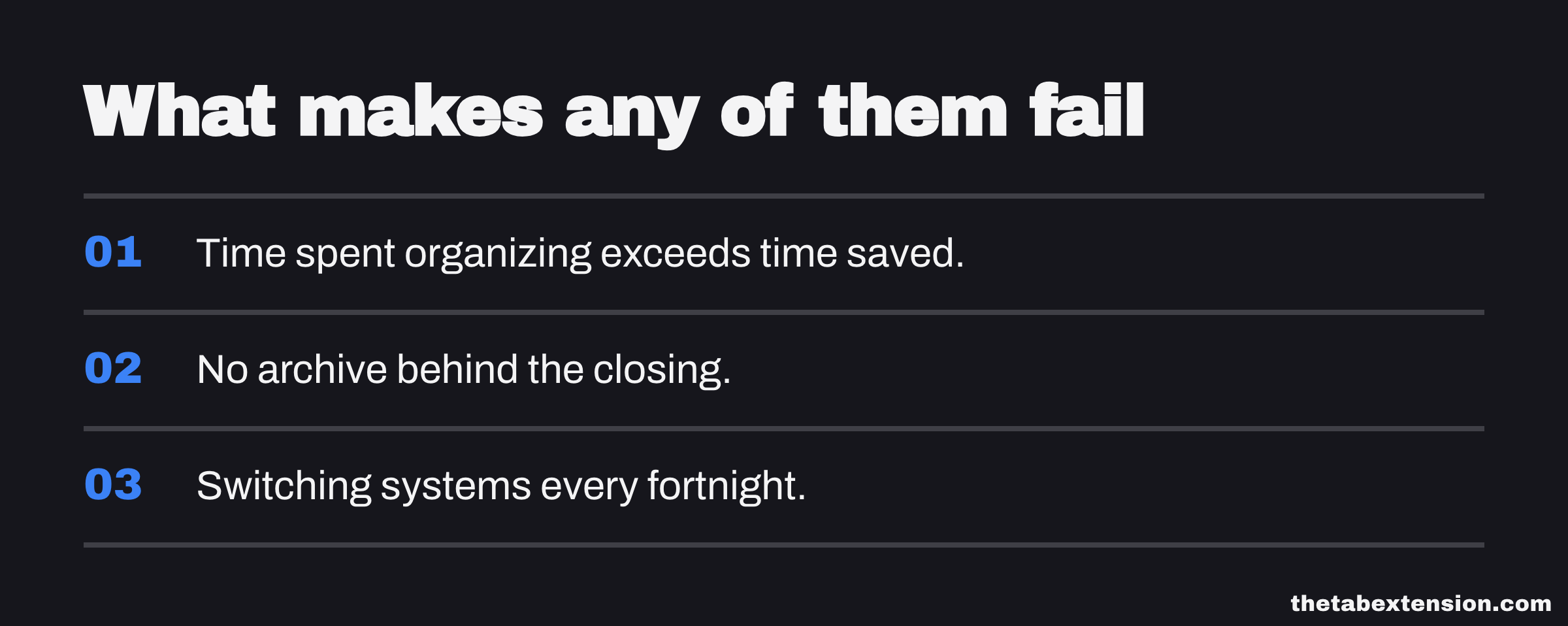
What makes any of them fail
The same three things, regardless of which one you picked.
Time spent organizing exceeds time saved. Any system requiring more than a few seconds per switch has stopped paying for itself. If you have started enjoying the maintenance, that is a warning.
No archive behind the closing. Every system on this list eventually asks you to close something. Without a place for the closed thing to land, you will stop closing, and then you no longer have a system, you have a naming scheme for a pile. This is the failure that hides best, because nothing breaks on the day it happens. The groups are still named. The windows are still split by project. The reset is still on the calendar. What changed is that you kept one tab through the reset because closing it felt final, and then you kept a few more, and six weeks later the arrangement is immaculate and the count is back where it started. Every other failure on this list announces itself; this one leaves the system looking exactly as it did the week you set it up.
Switching systems every fortnight. The discomfort in week two is what adoption feels like, not evidence that the system is wrong. Give one a month before replacing it, then replace it decisively if it has not held.
None of these systems reduce your tab count on their own. What they do is decide, in advance, what happens to a tab you are finished with, so that the answer stops being "leave it there" forty times a day. That single decision made once is most of the benefit, and which of the seven you use to make it matters considerably less than the fact that you made it.
SOURCES
Every factual claim in this article traces to a source below. Where we could not source a claim, we removed it rather than softening it.
Chrome has had named, color-coded tab groups since 2020.
A Chrome tab group can be collapsed so only its name or colored circle shows in the tab strip; a closed group is not deleted; tab groups are saved and synced across devices signed in with the same Google Account, and unchecking Open Tabs under Sync stops that; tabs and tab groups in the Inactive section are automatically closed after 6 months, with synced tab groups closed but not deleted.
Firefox shipped native tab groups in version 137, released 1 April 2025, after years of the feature existing only as extensions.
Mozilla's own report that over 18 million people have used Firefox tab groups.
Apple's Safari 15.1 user guide documents Tab Groups, and carries a "Keep Tab Groups updated across your devices" procedure requiring the same Apple ID, Safari turned on in iCloud preferences, and two-factor authentication.
Edge Workspaces group related tabs into a single workspace so that opening the workspace restores all associated tabs.
Vivaldi's own Tab Stacks group browser tabs, and are documented as a Vivaldi feature rather than as Chrome's tab groups.
The Browser Company stopped actively building new Arc features in May 2025 and committed only to Chromium upgrades and security fixes, which is why the article says not to build a workflow on Arc.
Atlassian's acquisition of The Browser Company closed on 21 October 2025.
David Allen's own five-step description of the GTD method that System 4 applies to the tab strip - capture, clarify (decide the next action, or sort into trash, reference, or something to put on hold), organize, reflect ("review frequently") and engage.
Mark, Gonzalez and Harris observed 24 information workers across more than 700 hours and measured an average of 25 minutes and 26 seconds to resume interrupted work, which is the resumption cost saved sessions are meant to avoid.
PARA is Tiago Forte's four-category system of Projects, Areas, Resources and Archives, designed for notes and files across any platform rather than for browser tabs.